SELECT
   session_id AS SPID, command AS [Command], a.text AS Query, start_time AS [Start Time],
   percent_complete AS [Percent Complete],
   dateadd(second,estimated_completion_time/1000, getdate()) AS [Estimated Completion Time]
FROM sys.dm_exec_requests r
   CROSS APPLY sys.dm_exec_sql_text(r.sql_handle) a
WHERE r.command like 'BACKUP%' OR r.command like 'RESTORE%')


Friday, May 20, 2022
T-SQL to find Backup or Restore Progress
Here is a script that comes handy while performing a huge database Backup or Restore. This script provides the details on the progress of the Backup or Restore operation including the estimated finish time.
Friday, June 8, 2012
Order of Installing Service Pack on systems hosting Database Mirroring
If you have servers which hosts database mirroring and you want to install the service pack on those systems and you are trying to find out the order in which you need to do it then, here is the order in which you need to install service pack or a hotfix on the systems which hosts Database Mirroring.
- Backup the principal
- If you are using a witness, remove it from mirroring
- Upgrade the mirror
- Failover to mirror
- Upgrade original principal/current mirror
- If you wish to fail back to original principal continue on; otherwise, proceed to step 8
- Failover to original principal
- If you are using a witness, add it back into mirroring
For more information refer to the following article to know the entire process for upgrading both the principal and mirror servers.
http://technet.microsoft.com/
http://technet.microsoft.com/
Thursday, June 7, 2012
Error while starting SQL Server Agent in Denali (OpenSQLServerInstanceRegKey:GetRegKeyAccessMask failed (reason: 2).)
I had recently installed SQL Server 2012 AKA Denali CTP version on my system and when I tried to start the SQL Server agent, The agent was starting and was immediately getting stopped by displaying the below message.

When I investigated further, I found the below error message from the event viewer.
When I investigated further, I found the below error message from the event viewer.
OpenSQLServerInstanceRegKey:GetRegKeyAccessMask failed (reason: 2).
|
Possible Workaround:
I got this working by changing the Log on account of SQL server agent from "NT SERVICE\SQLServerAgent" to "Local System" or a domain account.
Wednesday, June 6, 2012
Recycle error log and SQL Server agent error log (SQLAgent.out) file
Recycle Error log:
When we run the below command, it Closes the current error log file and cycles the error log extension numbers just like a server restart.
Permission Required: sysadmin fixed server role
Recycle SQL Server Agent error log (SQLAgent.out):
When we run the below command, it Closes the current SQL Server Agent error log file and cycles the SQL Server Agent error log extension numbers just like a server restart.
Permission Required: sysadmin fixed server role
When we run the below command, it Closes the current error log file and cycles the error log extension numbers just like a server restart.
Permission Required: sysadmin fixed server role
USE msdb
GO
EXEC sp_cycle_errorlog
GO
Recycle SQL Server Agent error log (SQLAgent.out):
When we run the below command, it Closes the current SQL Server Agent error log file and cycles the SQL Server Agent error log extension numbers just like a server restart.
Permission Required: sysadmin fixed server role
USE msdb
GO
EXEC dbo.sp_cycle_agent_errorlog
GO
Tuesday, May 22, 2012
Three new DMV's "sys.dm_server_services", "sys.dm_server_registry" and "sys.dm_server_memory_dumps"
The DMV's "sys.dm_server_services", "sys.dm_server_registry" and "sys.dm_server_memory_dumps" are the 3 new DMV's that were introduced in SQL Server 2008 R2 and have been enhanced in SQL Server 2012 AKA Denali.
sys.dm_server_services
This DMV gives information and status of the services SQL Server, SQL Server Agent and SQL Full-text Filter Daemon Launcher
Usage:
 Reference:
http://msdn.microsoft.com/en-us/library/hh204542.aspx
sys.dm_server_registry
This DMV gives information about installation and configuration data that is stored in the windows registry for the current instance of SQL server.
Usage:
 Reference:
http://msdn.microsoft.com/en-us/library/hh204561.aspx
sys.dm_server_memory_dumps
This DMV gives information about memory dump files generated by the SQL Server database engine.
Usage:
 There are no dump files created yet from my Database engine.
Reference: http://technet.microsoft.com/en-us/library/hh204543.aspx
sys.dm_server_services
This DMV gives information and status of the services SQL Server, SQL Server Agent and SQL Full-text Filter Daemon Launcher
Usage:
SELECT * FROM sys.dm_server_servicesResult:
http://msdn.microsoft.com/en-us/library/hh204542.aspx
sys.dm_server_registry
This DMV gives information about installation and configuration data that is stored in the windows registry for the current instance of SQL server.
Usage:
SELECT * FROM sys.dm_server_registryResult:
http://msdn.microsoft.com/en-us/library/hh204561.aspx
sys.dm_server_memory_dumps
This DMV gives information about memory dump files generated by the SQL Server database engine.
Usage:
SELECT * FROM sys.dm_server_memory_dumpsResult:
Reference: http://technet.microsoft.com/en-us/library/hh204543.aspx
Friday, May 18, 2012
Get SQL Server details using T-SQL
Here is a T-SQL script which gives you the details of a SQL Server.
This will be very useful when you are gathering SQL Server information from multiple servers and works for SQL Server 2005 and above.
This will be very useful when you are gathering SQL Server information from multiple servers and works for SQL Server 2005 and above.
CREATE TABLE #ServerDetails(ID int,  Name  sysname, Internal_Value int, Value nvarchar(512))
INSERT #ServerDetails EXEC master.dbo.xp_msver

DECLARE @InstanceName nvarchar(50)
DECLARE @value VARCHAR(100)
DECLARE @RegKey_InstanceName nvarchar(500)
DECLARE @RegKey nvarchar(500)
DECLARE @AuditLevel int
DECLARE @DataDirectory nvarchar(500)
DECLARE @LogDirectory nvarchar(500)
DECLARE @BackupDirectory nvarchar(500)

SET @InstanceName=CONVERT(nVARCHAR,isnull(SERVERPROPERTY('INSTANCENAME'),
'MSSQLSERVER'))

if(SELECT Convert(varchar(1),(SERVERPROPERTY('ProductVersion'))))<>8
BEGIN
SET @RegKey_InstanceName='SOFTWARE\Microsoft\Microsoft SQL Server\Instance Names\SQL'

EXECUTE xp_regread
  @rootkey = 'HKEY_LOCAL_MACHINE',
  @key = @RegKey_InstanceName,
  @value_name = @InstanceName,
  @value = @value OUTPUT

SET @RegKey='SOFTWARE\Microsoft\Microsoft SQL Server\'+@value+'\MSSQLServer\'


EXEC master..xp_regread
  @rootkey='HKEY_LOCAL_MACHINE',
  @key=@RegKey,
  @value_name='AuditLevel',
  @value=@AuditLevel OUTPUT

EXEC master..xp_regread
  @rootkey='HKEY_LOCAL_MACHINE',
  @key=@RegKey,
  @value_name='DefaultData',
  @value=@DataDirectory OUTPUT

EXEC master..xp_regread
  @rootkey='HKEY_LOCAL_MACHINE',
  @key=@RegKey,
  @value_name='DefaultLog',
  @value=@LogDirectory OUTPUT

EXEC master..xp_regread
  @rootkey='HKEY_LOCAL_MACHINE',
  @key=@RegKey,
  @value_name='BackupDirectory',
  @value=@BackupDirectory OUTPUT

END

SELECT  SERVERPROPERTY('ComputerNamePhysicalNetBIOS') [Machine Name]
    ,SERVERPROPERTY('ServerName') AS [SQL Server Name]
    ,SERVERPROPERTY('InstanceName') AS [Instance Name]
    ,SERVERPROPERTY('Collation') AS [Server Collation]
    ,'Microsoft SQL Server ' + CAST(SERVERPROPERTY('Edition') AS varchar(250)) AS Edition
    ,SERVERPROPERTY('ProductLevel') AS [Product Level]
    ,(SELECT Value FROM #ServerDetails WHERE Name = N'Language') AS [Language]
    ,(SELECT Value FROM #ServerDetails WHERE Name = N'Platform') AS [Platform]
    ,(SELECT 'Microsoft Windows NT ' + Value from #ServerDetails where Name = N'WindowsVersion') AS [Operating System]
    ,(SELECT Internal_Value FROM #ServerDetails WHERE Name = N'ProcessorCount') AS [Processors]
    ,(SELECT CAST(Internal_Value AS varchar)+ ' (MB)' FROM #ServerDetails WHERE Name = N'PhysicalMemory') AS Memory
    , CASE WHEN SERVERPROPERTY('IsClustered') = 1 THEN 'True' ELSE 'False' END AS IsClustered
    ,(SELECT value from sys.configurations where name='min server memory (MB)') AS 'Min Server Memory (MB)'
    ,(SELECT value from sys.configurations where name='max server memory (MB)') AS 'Max Server Memory (MB)'
    ,(SELECT CASE WHEN value=0 THEN 'True' ELSE 'False' END from sys.configurations where name='affinity mask') AS 'Automatically set processor affinity mask for all processor'
    ,(SELECT CASE WHEN value=0 THEN 'True' ELSE 'False' END from sys.configurations where name='affinity I/O mask') AS 'Automatically set I/O affinity mask for all processor'
    ,CASE WHEN SERVERPROPERTY('IsIntegratedSecurityOnly')= 1 THEN 'Windows Authentication Mode'
    WHEN SERVERPROPERTY('IsIntegratedSecurityOnly')= 0 THEN 'SQL Server and Windows Authentication Mode' END AS [Server Authentication]
    ,CASE WHEN @AuditLevel = 0 THEN 'None'
    WHEN @AuditLevel = 1 THEN 'Successful Logins Only'
    WHEN @AuditLevel = 2 THEN 'Failed Logins Only'
    WHEN @AuditLevel = 3 THEN 'Both Failed and Successful Logins'
    END AS [Audit Level]
    ,(select CASE WHEN value = 0 THEN 'False' WHEN value = 1 THEN 'True' END from sys.configurations where name='remote access') AS 'Allow remote connections to this Server'
    ,(select CASE WHEN value = 0 THEN 'unlimited' ELSE value END from sys.configurations where name='user connections') AS 'Max number of concurrent Connections'
    ,(select CASE WHEN value = 0 THEN 'No Timeout' ELSE value END from sys.configurations where name='remote query timeout (s)') AS 'Query Timeout (s)'
    ,(select CASE WHEN value = 0 THEN 'False' WHEN value = 1 THEN 'True' END from sys.configurations where name='remote access') AS 'Allow Remote Connections to this server'
    ,@DataDirectory AS 'Default Data Directory'
    ,@LogDirectory AS 'Default Log Directory'
    ,@BackupDirectory AS 'Default Backup Directory'
    ,(SELECT value from sys.configurations WHERE name='max degree of parallelism') AS 'Max Degree of Parallelism'
    ,(SELECT value from sys.configurations WHERE name='remote login timeout (s)') AS 'Remote Login Timeout (s)'
    ,(SELECT CASE WHEN value = 0 THEN 'False' WHEN value = 1 THEN 'True' END from sys.configurations WHERE name='scan for startup procs') AS 'Scan for Startup Procs'

DROP TABLE #ServerDetails
Monday, April 23, 2012
Performance Dashboard Reports - Microsoft SQL Server 2012
The SQL Server 2012 Performance Dashboard Reports are Reporting Services report files designed to be used with the Custom Reports feature of SQL Server Management Studio. The reports allow a database administrator to quickly identify whether there is a current bottleneck on their system, and if a bottleneck is present, capture additional diagnostic data that may be necessary to resolve the problem.
Common performance problems that the dashboard reports may help to resolve include:
Common performance problems that the dashboard reports may help to resolve include:
- CPU bottlenecks (and what queries are consuming the most CPU)
- IO bottlenecks (and what queries are performing the most IO)
- Index recommendations generated by the query optimizer (missing indexes)
- Blocking
- Latch contention
This is a downloadable available from Microsoft and can be downloaded from the link here.
This also works for SQL Server 2008 R2 and SQL Server 2008 as well

Wednesday, April 11, 2012
Startup Parameters - A new tab in Denali's SQL Server Configuration manager
We all know that Denali was launched with many new things built within. In those wide range of new enhancements, a separate tab for Startup parameters is one among them.
To check this out,

The Older versions of SQL Server Configuration Manager used to show the "Startup Parameters" as part of "Advanced" Tab.

To check this out,
- Go to Denali's "SQL Server Configuration Manager"
- Right-Click on a SQL Server Service and Choose "Properties"
- Now, in the properties page you can find a new tab for "Startup Parameters"
The Older versions of SQL Server Configuration Manager used to show the "Startup Parameters" as part of "Advanced" Tab.
Friday, March 23, 2012
Different ways to check your SQL Server(s) Authentication mode
Checking the Authentication mode using T-SQL:
- Using "xp_LoginConfig" extended Stored Procedure
EXEC Master.dbo.xp_LoginConfig 'login mode'
- Using "SERVERPROPERTY" Function
SELECT CASE SERVERPROPERTY('IsIntegratedSecurityOnly') WHEN 1 THEN 'Windows Authentication mode' WHEN 0 THEN 'SQL Server and Windows Authentication mode' END as [Authentication Mode] - Using Registry
DECLARE @Mode INT
EXEC master.dbo.xp_instance_regread N'HKEY_LOCAL_MACHINE',
N'Software\Microsoft\MSSQLServer\MSSQLServer',
N'LoginMode', @Mode OUTPUT

SELECT CASE @Mode
WHEN 1 THEN 'Windows Authentication mode'
WHEN 2 THEN 'SQL Server and Windows Authentication mode'
ELSE 'Not known'
END as [Authentication Mode]
Checking the Authentication mode using SSMS:
- Right-Click on the Server
- Choose "Properties"
- Navigate to "Security" Page
- Check "Server Authentication" Section

Tuesday, February 7, 2012
Moving SQL Agent Log file "SQLAGENT.OUT" to a different location
In one of my previous posts "Undocumented stored procedure for retrieving SQL Agent properties", I had explained how to retrieve the SQL Agent Properties.
In this post I will explain how to change the location of the SQL Agent Log file "SQLAGENT.OUT".
To find the current location of SQLAGENT.OUT file, execute the below SP and look at the value of the column "errorlog_file". This is location where SQLAGENT.OUT file is located.
EXEC msdb..sp_get_sqlagent_properties
GO
Output:

Now, to change the location of SQLAGENT.OUT file, run the below command and re-start the SQL Server Agent Service and you are done.
EXEC msdb.dbo.sp_set_sqlagent_properties @errorlog_file=N'<new path>\SQLAGENT.OUT'
GO
Sunday, February 5, 2012
T-SQL Query to change the datatype of multiple columns of single or multiple tables
There might be a situation where a person designed a database with a particular datatype for many tables and now you want to change the datatype to a different one for all those columns in a particular table or multiple tables due to various reasons.
Changing the datatype for a single table or five tables or 10 tables is a easy task, but when the tables list is in hundreds how easy is it do in the traditional way?
Below stored procedure gives you the flexibility of changing the datatype of multiple columns in a single or multiple tables at one go.
Things to note before running the scripts
Usage:
Changing the datatype for a single table or five tables or 10 tables is a easy task, but when the tables list is in hundreds how easy is it do in the traditional way?
Below stored procedure gives you the flexibility of changing the datatype of multiple columns in a single or multiple tables at one go.
Things to note before running the scripts
- Backup your database
- These scripts are provided AS IS without warranty of any kind.
CREATE PROC usp_ChangeColumnDatatype (@currentDataType nvarchar(25),
   @DataTypeToSet nvarchar(50),
   @ScanTables nvarchar(100),
   @PrintCommandsOnly bit )

AS
SET NOCOUNT ON
DECLARE @ScanTables_Local nvarchar(100)
SET @ScanTables_Local = '''' + REPLACE(REPLACE(@ScanTables,',',''','''),' ','') + ''''
IF @ScanTables = 'All'
BEGIN
CREATE TABLE #Temp (CommandsToExecute nvarchar(max))
INSERT INTO #temp SELECT 'ALTER TABLE ' + OBJECT_NAME(o.object_id) +
    ' ALTER COLUMN ' + c.name + ' ' + @DataTypeToSet +
    CASE WHEN c.is_nullable = 0 THEN ' NOT NULL' ELSE ' NULL' END AS CommandsToExecute
FROM sys.objects o
INNER JOIN sys.columns c ON o.object_id=c.object_id
INNER JOIN sys.types t ON c.system_type_id=t.system_type_id
WHERE o.type='u'
and t.name = @currentDataType
END

IF @ScanTables <> 'All'
BEGIN
CREATE TABLE #Temp_SpecificTables (CommandsToExecute nvarchar(max))

DECLARE @Cmd nvarchar(max)
SET @Cmd = 'INSERT INTO #Temp_SpecificTables  SELECT ''ALTER TABLE '' + OBJECT_NAME(o.object_id) +
    '' ALTER COLUMN '' + c.name + ''' + @DataTypeToSet + ''' +
    CASE WHEN c.is_nullable = 0 THEN ''NOT NULL'' ELSE ''NULL'' END AS CommandsToExecute
FROM sys.objects o
INNER JOIN sys.columns c ON o.object_id=c.object_id
INNER JOIN sys.types t ON c.system_type_id=t.system_type_id
WHERE o.type=''u''
and t.name = '''+@currentDataType+''' and OBJECT_NAME(o.object_id) in ('+ @ScanTables_Local + ')'
--PRINT @cmd
EXECUTE (@cmd)
END
if @PrintCommandsOnly = 'True' and @ScanTables = 'All'
BEGIN
SELECT * FROM #Temp
DROP TABLE #Temp
END

if @PrintCommandsOnly = 'False' and @ScanTables = 'All'
BEGIN
--SELECT * FROM #Temp
PRINT 'Changing of the datatypes of table(s) '+ @ScanTables +' from ' + @currentDataType + ' to '+ @DataTypeToSet + ' started at ' + CAST(GETDATE() AS varchar)
WHILE (SELECT COUNT(*) FROM #Temp) <> 0
BEGIN
DECLARE @varTemp nvarchar(max)
SELECT @varTemp = CommandsToExecute FROM #Temp
EXECUTE (@varTemp)
DELETE FROM #temp WHERE CommandsToExecute = @varTemp
END
DROP TABLE #Temp
PRINT 'Changing of the datatypes of table(s) '+ @ScanTables +' from ' + @currentDataType + ' to '+ @DataTypeToSet + ' ended at ' + CAST(GETDATE() AS varchar)
END

if @PrintCommandsOnly = 'True' and @ScanTables <> 'All'
BEGIN
SELECT * FROM #Temp_SpecificTables
DROP TABLE #Temp_SpecificTables
END

if @PrintCommandsOnly = 'False' and @ScanTables <> 'All'
BEGIN
--SELECT * FROM #Temp_SpecificTables
PRINT 'Changing of the datatypes of table(s) '+ @ScanTables_Local +' from ' + @currentDataType + ' to '+ @DataTypeToSet + ' started at ' + CAST(GETDATE() AS varchar)
WHILE (SELECT COUNT(*) FROM #Temp_SpecificTables) <> 0
BEGIN
DECLARE @varTemp_SpecificTables nvarchar(max)
SELECT @varTemp_SpecificTables = CommandsToExecute FROM #Temp_SpecificTables
EXECUTE (@varTemp_SpecificTables)
DELETE FROM #Temp_SpecificTables WHERE CommandsToExecute = @varTemp_SpecificTables
END
DROP TABLE #Temp_SpecificTables
PRINT 'Changing of the datatypes of table(s) '+ @ScanTables_Local +' from ' + @currentDataType + ' to '+ @DataTypeToSet + ' ended at ' + CAST(GETDATE() AS varchar)
END
SET NOCOUNT OFF
GO
Usage:
EXEC usp_ChangeColumnDatatype @currentDataType = 'nvarchar',
         @DataTypeToSet = 'varchar(50)',
         @ScanTables = 'Table_1,Table_2', --Table1, Table2,Table3 or ALL
         @PrintCommandsOnly = 'FALSE' -- TRUE - Will print the commands or FALSE - Will execute the commands.
Monday, December 5, 2011
Granting Read-Only and administrative access to Central Management Server (CMS)
In one of my previous post, I had discussed about the Central Management Server and how to Register it.
In this post, I will be telling how to give read-only access and a Administrative access to an existing CMS.
Grating the Read-Only and Administrative access to CMS is very simply and the activity includes adding the right database users to right groups in msdb database.
Granting Read-Only access:
In this post, I will be telling how to give read-only access and a Administrative access to an existing CMS.
Grating the Read-Only and Administrative access to CMS is very simply and the activity includes adding the right database users to right groups in msdb database.
Granting Read-Only access:
USE [msdb]
GO
CREATE USER [DBUserName] FOR LOGIN [LoginName]
GO
EXEC sp_addrolemember N'ServerGroupReaderRole', N'DBUserName'
GO
Granting Administrator access:
This access is usually give to the DBA's
USE [msdb]
GO
CREATE USER [DBAUserName] FOR LOGIN [DBALoginName]
GO
EXEC sp_addrolemember N'ServerGroupAdministratorRole', N'DBAUserName'
GO
Sunday, December 4, 2011
Give access to a non sysadmin user to run Profiler
Sometimes as a DBA, you come across a situation where you need to give access to a non sysadmin user to run profiler on a particular SQL server.
If you try to run the profiler using the user who does not have sysadmin access then you will get the below error.

Here is the solution how to grant access to a non sysadmin user to run profiler.
Using Query:
Using SSMS:
Note: The Granter should be a sysadmin user.
If you try to run the profiler using the user who does not have sysadmin access then you will get the below error.
Here is the solution how to grant access to a non sysadmin user to run profiler.
Using Query:
-- To Grant access to a Windows Login
USE master;
GRANT ALTER TRACE TO [Domain\WindowsLogin]

-- To Grant access to a SQL Login
USE master;
GRANT ALTER TRACE TO [SQL User]
Using SSMS:
- Expand the Server in object Explorer
- Expand "Security" folder and then "logins"
- Right-Click on the login to which you need to give access and then go to "Properties" of that login
- Go to "Securables" Tab
- Select the server you want to add the permission
- In the "Permission for <Server Name>" block, click on "Grant" check box for "Alter Trace" and click "OK"
- Once this is completed, the permission should appear in the "Effective" Tab
Note: The Granter should be a sysadmin user.
Friday, November 18, 2011
Microsoft SQL Server 2012 Release Candidate 0 (RC0) - Available for Download
Microsoft SQL Server 2012 RC0 enables a cloud-ready information platform that will help organizations unlock breakthrough insights across the organization as well as quickly build solutions and extend data across on-premises and public cloud backed by capabilities for mission critical confidence.
To read more and download Microsoft SQL Server 2012 RC0 click here.
To read more and download Microsoft SQL Server 2012 RC0 click here.
Tuesday, September 27, 2011
Backup Database to multiple locations simultaneously - Mirror Backups
Database backup is one the regular activity a DBA would perform. Some times you might come across a situation where in you need to backup the database to different location. When I say backup database to different locations, it means that a copy of backup file needs to be placed on a different location as well and this is different from the Split Backups.


This is can be achieved by different methods,
- Take backup and then copy to multiple location
- Take backup of the same database multiple times pointing to different locations
- Use "MIRROR TO" Option in the Backup command
Using the option "MIRROR TO" is very simple, you just need to mention "MIRROR TO" and "WITH FORMAT" options in the normal BACKUP DATABASE Statement and you are done. The backup database statement with these two options will take the backup of the same database to multiple locations at the same time.
This option "MIRROR TO" is introduced in SQL Server 2005 and this works only in SQL Server 2005 Enterprise Edition and later versions.
This can be used for all backup types and the Maximum number of "MIRROR TO" clauses that you can specify is three.
Example:
| BACKUP DATABASE AdventureWorks
TO DISK = 'C:\Backup\AdventureWorks_Full.bak'
MIRROR TO DISK = 'C:\Mirror\AdventureWorks_Full.bak'
WITH STATS=10, FORMAT
BACKUP DATABASE AdventureWorks
TO DISK = 'C:\Backup\AdventureWorks_Differential.bak'
MIRROR TO DISK = 'C:\Mirror\AdventureWorks_Differential.bak'
WITH STATS=10, DIFFERENTIAL, FORMAT
BACKUP LOG AdventureWorks
TO DISK = 'C:\Backup\AdventureWorks_log.trn'
MIRROR TO DISK = 'C:\Mirror\AdventureWorks_log.trn'
WITH STATS=10, FORMAT
|
When it comes to restoring the database, we can use either of the backup copies to restore or recover the database.
Friday, September 16, 2011
Hide an Instance of SQL Server Database Engine
In one of my previous post "List of SQL Server instances currently installed in your network", I explained how to get the list of SQL server instances installed in your network.
Sometimes you might require an SQL Server instance to be not exposed to others due to some security reason. This can be done by using the "Hide" option available for an SQL Server instance.
Before Hiding an Instance:

Steps to Hide an Instance of SQL Server Database Engine

Sometimes you might require an SQL Server instance to be not exposed to others due to some security reason. This can be done by using the "Hide" option available for an SQL Server instance.
Before Hiding an Instance:
Steps to Hide an Instance of SQL Server Database Engine
- Go to "SQL Server Configuration Manager"
- In the Left Pane Expand "SQL Server Network Configuration"
- Now Right Click on "Protocols for <ServerName>" and go to Properties for the server you need to hide.
- In the "Flags" Tab, change the option to "Yes" for "Hide Instance"

- Click on "Apply" and "OK"
- Now re-start the SQL Server Service for this Instance and you are done. This instance from now will be hidden.
After Hiding an Instance:
Friday, September 2, 2011
Get last backup details of all databases in a server
This stored procedure give you the information about latest backups happened on all databases in a server.
This SP works for SQL server 2005 and up.
Results:

This SP works for SQL server 2005 and up.
| Create Proc sp_BackupDetails
AS
DECLARE @BackupDetails table
([Server Name] nvarchar(500),
[Database Name] nvarchar(500),
[Last Full Backup] nvarchar(500),
[Last Differential Backup] nvarchar(500),
[Last Log Backup] nvarchar(500),
[Last File or filegroup Backup] nvarchar(500),
[Last Differential file Backup] nvarchar(500),
[Last Partial Backup] nvarchar(500),
[Last Differential Partial Backup] nvarchar(500)
)
DECLARE @DBName nvarchar(500)
Declare DBName Cursor for
Select name from sys.databases
Open DBName
Fetch Next from DBName into @DBName
While @@fetch_status = 0
BEGIN
Insert into @BackupDetails
select @@ServerName as [Server Name]
,SDB.name AS [Database Name]
,(select COALESCE(Convert(nvarchar(20), MAX(backup_finish_date), 100),'NA') from msdb..backupset where database_name=@DBName and type='D') AS [Last Full Backup]
,(Select COALESCE(Convert(nvarchar(20), MAX(backup_finish_date), 100),'NA') from msdb..backupset where database_name=@DBName and type='I') AS [Last Differential Backup]
,(Select COALESCE(Convert(nvarchar(20), MAX(backup_finish_date), 100),'NA') from msdb..backupset where database_name=@DBName and type='L') AS [Last Log Backup]
,(Select COALESCE(Convert(nvarchar(20), MAX(backup_finish_date), 100),'NA') from msdb..backupset where database_name=@DBName and type='F') AS [Last File or filegroup Backup]
,(Select COALESCE(Convert(nvarchar(20), MAX(backup_finish_date), 100),'NA') from msdb..backupset where database_name=@DBName and type='G') AS [Last Differential file Backup]
,(Select COALESCE(Convert(nvarchar(20), MAX(backup_finish_date), 100),'NA') from msdb..backupset where database_name=@DBName and type='P') AS [Last Partial Backup]
,(Select COALESCE(Convert(nvarchar(20), MAX(backup_finish_date), 100),'NA') from msdb..backupset where database_name=@DBName and type='Q') AS [Last Differential Partial Backup]
from sys.databases SDB
where SDB.name =@DBName
Fetch Next from DBName into @DBName
END
Close DBName
DEALLOCATE DBName
Select * from @BackupDetails
GO
|
Usage:
Exec sp_BackupDetails
go
Sunday, August 14, 2011
Looping through SQL Servers using SSIS or Dynamically build connection to multiple SQL Servers
Consider you are giver a task of gathering information from multiple servers. What are the different ways you can automate this?
- Create linked servers in each server pointing to your central repository
- Create Separate SSIS package in each servers which loads data to your central repository
- Create one SSIS package with multiple data sources and duplicate the tasks for each data source.
- Create one SSIS package which dynamically builds connection to each server and does the data loading tasks.
If you choose an option between 1 and 3 , then you will have to do some extra work for gathering the server information when there are new servers added to your environment.
If you choose the 4th option then also you will have some extra work but it is very small and easy when compared to the first 3 options. Here you need to just add the new Server Names to the table and that is all and everything else will be taken care by the SSIS package.
In this post I am going to explain how to create a SSIS package which loops through multiple SQL server and gathers information by building the connection to those servers dynamically.
- Open “Microsoft Visual Studio”
- Create a new “Integration Services Project”
- Create a SSIS Package
- Create 2 Connection Managers, 1 for the source (which will be set dynamically for each iteration of the loop) and the other for destination (which will remain constant, in other terms your Central Repository)

- Store All your Server Names in a table preferably in the Central Repository (Destination Connection)
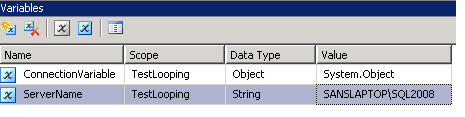
- Add 2 variables
- Add an "Execute SQL Task" with SQL Statement like "select FullName from dba..tbl_ListOfServers".

- Set the result set to Full Result Set.

- On the Result Set page, Add a Result
- Set Result Name "0" and assign it to your Object variable (In our case it is “ConnectionVariable”).

- Now add a “Foreach Loop Container”
- Connect it from the “Execute SQL Task”
- Inside the “Foreach Loop Container” , add the required “Data Flow Task”

- Now Right-Click on the “Foreach Loop Container” and click on “Edit”
- Now Go to “Collection” page and Set “Enumerator” to “Foreach ADO Enumerator” and “Enumerator Configuration ” to the Object Variable(In Our Case “ConnectionVariable”) and Set “Enumeration Mode” to “Rows in the First Table”

- Now go to the “Variable Mapping” page and Choose the “String Variable” (In our case it is “ServerName”) and set the Index=0

- Now, in the “Data Flow Task” add a “OLE DB Source” (Dynamic Connection) and connect it down to a “OLE DB Destination” (which will be your Central Repository).

- Now Select the Source Connection Manager (In Our Case it is “Source”) and Right-Click on this Source and choose “Properties”.
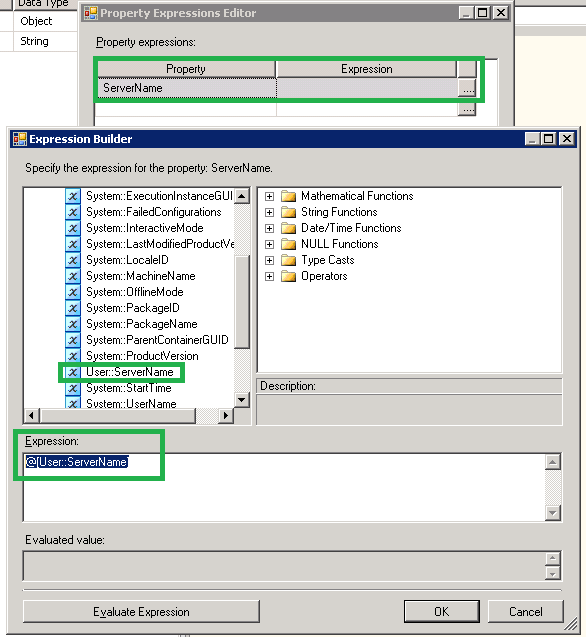
- Expand the “Expressions” Option and click on the browse button (…)
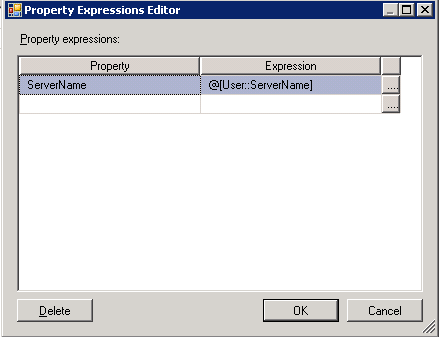
- Now in the “Property Expression Editor”, Choose the property “ServerName” and click on browse button (…). Now choose the String Variable (in our case “ServerName”) and Drag and Drop this variable into the “Expression” box and click “OK” and “OK”.
a. Name: ConnectionVariable (A name of your choice)
Scope: Package
Type: Object
Value: System.Object
b. Name: ServerName (A name of your choice)
Scope: Package
Type: String
Value: A Valid Server Name
This article is also available in pdf format for downloading.
Please Click here to get your copy.
Tuesday, June 7, 2011
SQL Server 2008 Service fails to start after Service Pack Installation
Some times you may find that the SQL Server Service is not starting after applying a service pack and when you check in the Event Viewer you find the below message.
| Script level upgrade for database 'master' failed because upgrade step 'sqlagent100_msdb_upgrade.sql' encountered error 598, state 1, severity 25. This is a serious error condition which might interfere with regular operation and the database will be taken offline. If the error happened during upgrade of the 'master' database, it will prevent the entire SQL Server instance from starting. Examine the previous errorlog entries for errors, take the appropriate corrective actions and re-start the database so that the script upgrade steps run to completion. |
SQL Server Setup creates a database with the data file name temp_MS_AgentSigningCertificate_Database.mdf during the installation process and if the SQL Server setup is not able to create that database in the default data path then the above error is returned as it is not able to find the path.
To fix this issue.
- Go to Registry editor, To open this, go to "Run" and type "regedit" and click "ok"
- First go to this path and make sure that the path in the key SQLDataRoot exists. If not then give a valid path to this key.
HKEY_LOCAL_MACHINE\SOFTWARE\Microsoft\Microsoft SQL Server\MSSQL10.<instance name>\Setup - Then go to this path and make sure that the path in the keys "BackupDirectory", "DefaultData" and "DefaultLog" exists. If not then give a valid path to these keys.
HKEY_LOCAL_MACHINE\SOFTWARE\Microsoft\Microsoft SQL Server\MSSQL10.<instance name>\MSSQLServer - Now you should be able to start the SQL Server Service without any issues.
Once the Service is started, verify the SQL Server, databases and others to make sure everything is fine.
Also verify if the Service pack or the CU is installed correctly.
Wednesday, June 1, 2011
Unable to start mail session (reason: No mail profile defined) - Message in Error Log
There will be many different messages that will be logged in the Error Log of SQL Server. Among them you might also find the below message some times.
This is the most common message that will be logged when there is no "Mail Session" defined for the SQL Server Agent Alert System.
| Date 6/1/2011 8:18:27 AM Log SQL Server Agent (Archive #2 - 6/1/2011 8:18:00 AM) Message [098] SQLServerAgent terminated (normally) |
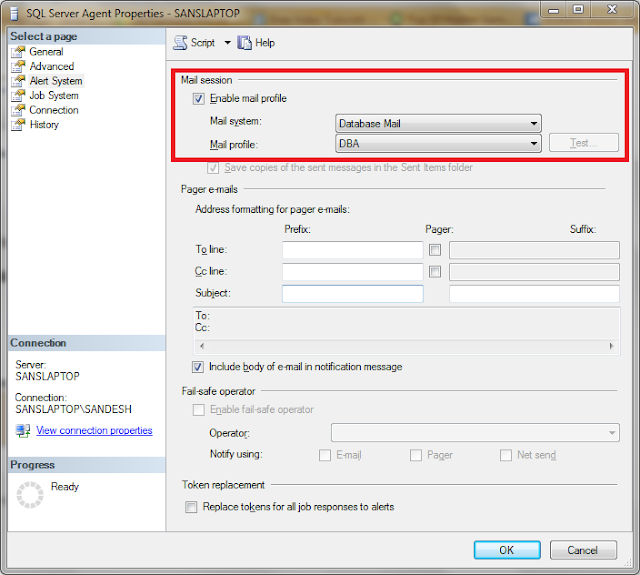
To Fix this or to make this message disappear in the Error Log, you have to enable "Mail Session" and re-start the SQL Server Agent.
To Do this,
- Connect to the Server
- Right Click on the "SQL Server Agent" and go to "Properties"
- Then Go to "Alert System" Tab
- Make sure the check box "Enable Mail Profile" is checked
- Click OK to exit
- Re-start the SQL Server Agent Service
Now if you again look into the Error Log you will not find this message anymore after re-starting the Agent Service.
Subscribe to:
Posts (Atom)