DECLARE @SQLServiceRestartDateTime AS VARCHAR(50),
		@ServerRestartDateTime AS VARCHAR(50)

SELECT @SQLServiceRestartDateTime = create_date FROM sys.databases WHERE database_id=2
SELECT @ServerRestartDateTime = CAST(DATEADD(SECOND, (ms_ticks/1000) * -1, GETDATE()) AS datetime) FROM sys.dm_os_sys_info

SELECT @SQLServiceRestartDateTime AS [SQL Service Start DateTime], @ServerRestartDateTime AS [Server Start DateTime]


Wednesday, May 25, 2022
T-SQL to find Server and SQL restart date time
This script comes handy when you would like to find out the Server and SQL services restart times.
Friday, May 20, 2022
T-SQL to find Backup or Restore Progress
Here is a script that comes handy while performing a huge database Backup or Restore. This script provides the details on the progress of the Backup or Restore operation including the estimated finish time.
SELECT
   session_id AS SPID, command AS [Command], a.text AS Query, start_time AS [Start Time],
   percent_complete AS [Percent Complete],
   dateadd(second,estimated_completion_time/1000, getdate()) AS [Estimated Completion Time]
FROM sys.dm_exec_requests r
   CROSS APPLY sys.dm_exec_sql_text(r.sql_handle) a
WHERE r.command like 'BACKUP%' OR r.command like 'RESTORE%')
Monday, May 16, 2022
T-SQL to find Navigation path in CMS
In large enterprises there will be huge number of SQL servers which will be registered within a Central Management Server (CMS) and times it may become difficult to find out where the server is registered atleast for new team members in the Huge pile of servers and folder structure. This query give you the path where the specified servers is registered within the CMS.
DECLARE @ServerName nvarchar(50)
SET @ServerName='SQL01';

WITH CMSCTE
AS
(
--Anchor
SELECT server_group_id, name, description, parent_id, 1 AS [Level], CAST((name) AS VARCHAR(MAX)) AS CMSPath
FROM msdb.dbo.sysmanagement_shared_server_groups AS A
WHERE parent_id IS NULL
UNION ALL
--Recursive Member
SELECT B.server_group_id, B.name, B.description, B.parent_id, C.[level] + 1 AS [Level], CAST((C.CMSPath + '->' + B.Name) AS VARCHAR(MAX)) AS CMSPath
FROM msdb.dbo.sysmanagement_shared_server_groups AS B
JOIN CMSCTE AS C
ON B.parent_id = C.server_group_id
)

SELECT TOP 1 CMSPath AS 'Path in CMS' , B.name as 'Server Name', B.description AS 'Server Description', A.name AS 'Group Name', A.description AS 'Group Description'
FROM CMSCTE AS A
INNER JOIN msdb.dbo.sysmanagement_shared_registered_servers AS B
ON A.server_group_id=B.server_group_id
WHERE B.name = @ServerName
ORDER BY [Level] DESC
Friday, April 22, 2022
T-SQL to find Remote Server Name of the linked server
At times it happens that you might have named a linked server with a friendly name that the actual server name. As the time flies and people change in the team, it will become difficult to identify how or to where this is linked. You can find the information using the sp_linkedservers stored procedure but what if the linked server configured uses a entirely different DNS name than the actual server? The below query helps to get the Remote Server Name with few other details when run against a linked server.
DECLARE @linkedServerName varchar(100), @sql varchar(max)
SET @linkedServerName='Your Linked Server Name'
SET @sql = CONCAT('SELECT * FROM OPENQUERY([',@linkedServerName , '],
''SELECT ''''',@linkedServerName,''''' AS LinkedServerName,
@@SERVERNAME AS RemoteServerName, SUSER_SNAME() AS ConnectedWith, DB_NAME() AS DefaultDB'')')
EXEC (@sql)
Wednesday, June 13, 2018
Trouble in Opening MDF File because it Says SQL Error 5171? - A guest Post by Andre Williams
MS SQL Server is the most widely used and deployed database server in organizations. But, there are times when the SQL Server database gets corrupted due to various reasons. Error messages like SQL Error 1571 are also frequent with SQL Server. Let’s learn more about the SQL error 1571, its reasons and solutions.
Symptoms of SQL Error 5171:
With SQL Error 5171, you may face failures while logging in to SQL Server, restoring SQL database files, creating a tempdb database, and attaching MDF files successfully to the SQL Server database. Instead you will receive an error saying – “.mdf is not a primary database file. (Microsoft SQL server 5171)”

Possible Reasons for SQL Error 5171:
MDF file saves data in the form of pages, and each page occupies space of 8KB. The initial first page is the header page containing important database details such as signature, file size, compatibility, and much more. Rest all the other pages stores the actual data.
When the header page or related page of the file does not get recognized by the SQL Server database, it results in the SQL Error 1571 as the entire MDF is not considered to be a valid file.
Solution to Fix SQL Error 5171:
There are multiple reasons due to which SQL Error 5171 occurs. Some scenarios are mentioned below with their possible fix solution.
Scenario 1:
Usage of a mirror database in MS SQL Server by a user encounters the Error 5171, when database is set online by executing ALTER DATABASE command
Scenario 2:
When the SQL Server is upgraded to a latest or newer version, there are possible chances of Error 5171. As, you will have to first detach the database and then upgrade it to the new version. Hence, when you will try to attach it back to the MS SQL Server, it will fail to do so and error 5171 might encounter.
Below mentioned are the possible solutions for this error:
Method 1: For database mirroring
Step 1: First set, the principal database
Step 2: Use ALTER DATABASE MODIFY FILE command to modify the information.
Step 3: Now, stop the SQL server instance.
Step 4: Copy MDF and LDF files in a separate directory
Step 5: Now, restart SQL Server and attach the database files
Method 2: For attaching the database
Step 1: To troubleshoot the error, use the sp_attach_db command
Step 2: The command will attach the detached database files after upgrading is completed.
Please note: This method will work only in the case where you have used the sp_detach_db command to detach the database
Method 3: Automated Method to FIX SQL Server Error 5171
The above methods can easily remove the SQL Error 5171. However, if you still face the error after trying the above workaround methods, then you can opt for the automated solution. You can use Kernel for SQL Database Recovery tool, one of the most recommended methods by the database experts. The tool smoothly repairs and recovers all the database objects of corrupt or inaccessible MDF and NDF files. It flawlessly recovers large-sized MDF and NDF files.
Symptoms of SQL Error 5171:
With SQL Error 5171, you may face failures while logging in to SQL Server, restoring SQL database files, creating a tempdb database, and attaching MDF files successfully to the SQL Server database. Instead you will receive an error saying – “.mdf is not a primary database file. (Microsoft SQL server 5171)”
Possible Reasons for SQL Error 5171:
MDF file saves data in the form of pages, and each page occupies space of 8KB. The initial first page is the header page containing important database details such as signature, file size, compatibility, and much more. Rest all the other pages stores the actual data.
When the header page or related page of the file does not get recognized by the SQL Server database, it results in the SQL Error 1571 as the entire MDF is not considered to be a valid file.
Solution to Fix SQL Error 5171:
There are multiple reasons due to which SQL Error 5171 occurs. Some scenarios are mentioned below with their possible fix solution.
Scenario 1:
Usage of a mirror database in MS SQL Server by a user encounters the Error 5171, when database is set online by executing ALTER DATABASE command
Scenario 2:
When the SQL Server is upgraded to a latest or newer version, there are possible chances of Error 5171. As, you will have to first detach the database and then upgrade it to the new version. Hence, when you will try to attach it back to the MS SQL Server, it will fail to do so and error 5171 might encounter.
Below mentioned are the possible solutions for this error:
Method 1: For database mirroring
Step 1: First set, the principal database
Step 2: Use ALTER DATABASE MODIFY FILE command to modify the information.
Step 3: Now, stop the SQL server instance.
Step 4: Copy MDF and LDF files in a separate directory
Step 5: Now, restart SQL Server and attach the database files
Method 2: For attaching the database
Step 1: To troubleshoot the error, use the sp_attach_db command
Step 2: The command will attach the detached database files after upgrading is completed.
Please note: This method will work only in the case where you have used the sp_detach_db command to detach the database
Method 3: Automated Method to FIX SQL Server Error 5171
The above methods can easily remove the SQL Error 5171. However, if you still face the error after trying the above workaround methods, then you can opt for the automated solution. You can use Kernel for SQL Database Recovery tool, one of the most recommended methods by the database experts. The tool smoothly repairs and recovers all the database objects of corrupt or inaccessible MDF and NDF files. It flawlessly recovers large-sized MDF and NDF files.
Final Words:
You can always opt to use the manual methods for SQL recovery if you are an experienced database professional. But if you’re a naïve user of SQL database and you are not skilled enough to understand the errors of the database, then we suggest you restore your database files with the help of the automated solution.
Hope the solutions help you to resolve the issues related to MS SQL Server. If you have any queries, please mention in the comments. We will get back to you with a possible resolution.
About Andre Williams
Andre Williams, with more than three year's experience in SQL related technologies, contributes articles, blogs, and how-to tips regularly.
Social Media Profiles
Thursday, February 18, 2016
Configuring AlwaysOn Availability Groups - Part 2
In my previous post we have learnt on how to configure the failover clustering. This is the first step and an important pre-requisite in configuring AlwaysOn Availability Groups.
In this post we will learn how to Enable and Configure the AlwaysOn Availability Groups using SQL Server 2016.
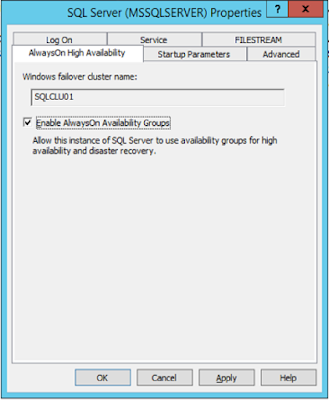
Before we start configuring the AlwaysOn, we need to enable this Feature.
Open "SQL Server configuration Manager"
In this post we will learn how to Enable and Configure the AlwaysOn Availability Groups using SQL Server 2016.
Before we start configuring the AlwaysOn, we need to enable this Feature.
Open "SQL Server configuration Manager"
Right-Click on “SQL Server” Service and click on
“Properties”
Go to “AlwaysOn High Availability” Tab and Check the box
“Enable AlwaysOn Availability Groups” and Click OK.
To Create new Availability Group
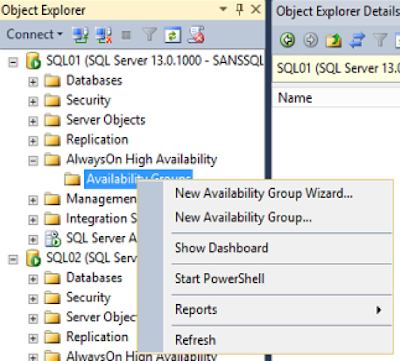
Open SSMS and connect to the SQL DB Engine.
Expand “AlwaysOn High Availability”
Right-Click on “Availability Groups” and click on “New
Availability Group Wizard”
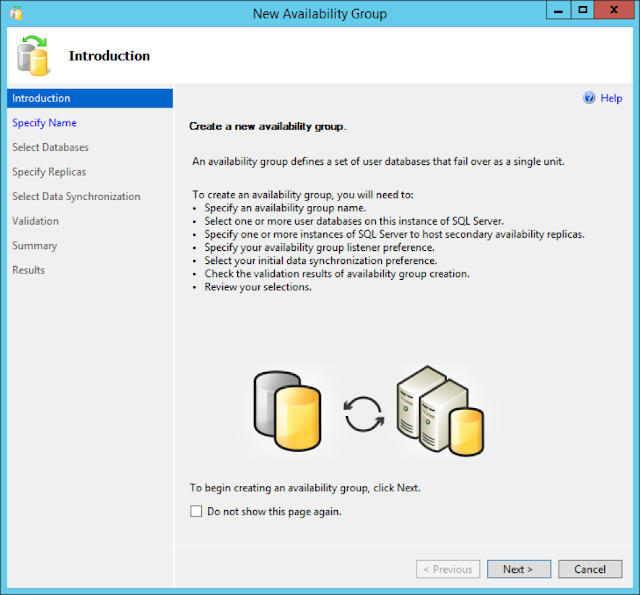
This is will open up the New Availability Group Wizard
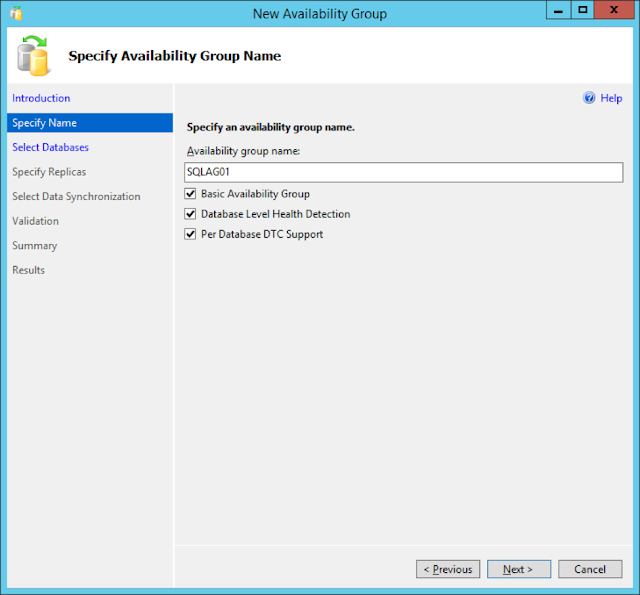
Give a name to the Availability Group and choose the required options and click Next.
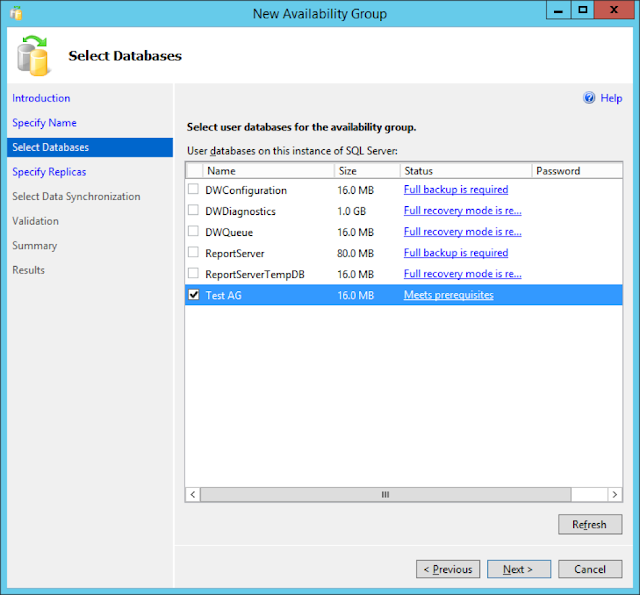
In this page, choose the databases that you may want to be part of this Availability Group.
Additional Databases can be added later as well.
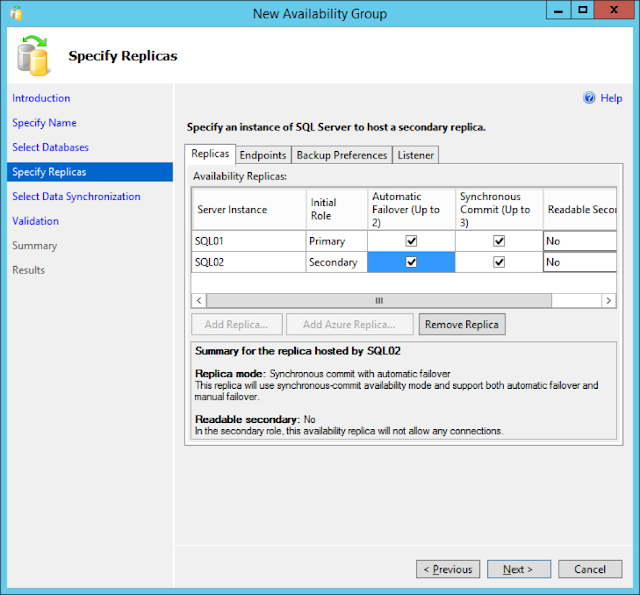
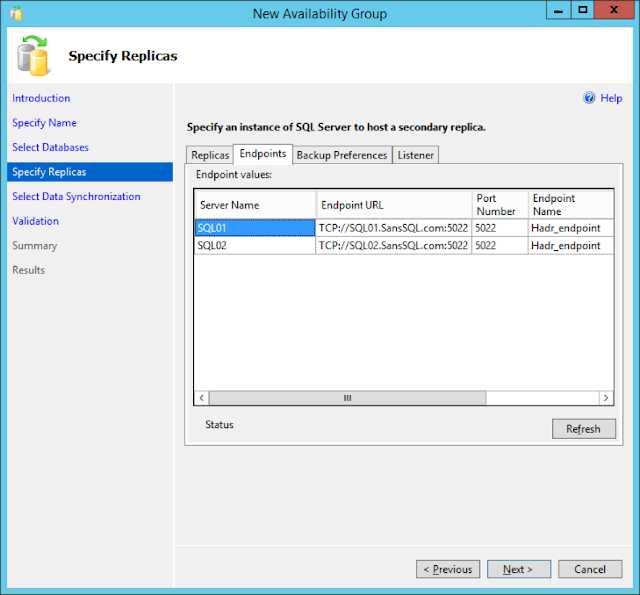
In the next page, Add the Replica SQL Server instances and configure Endpoints, Backup Preferences and Listener for this Availability Group
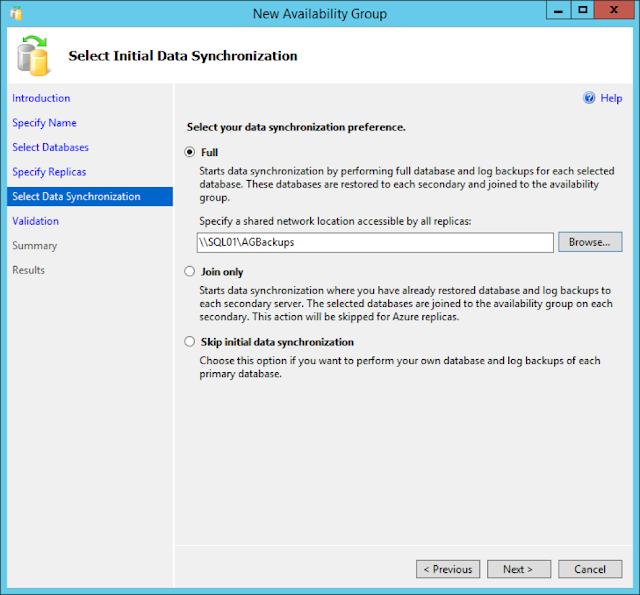
In the next page, specify the Synchronization preference.
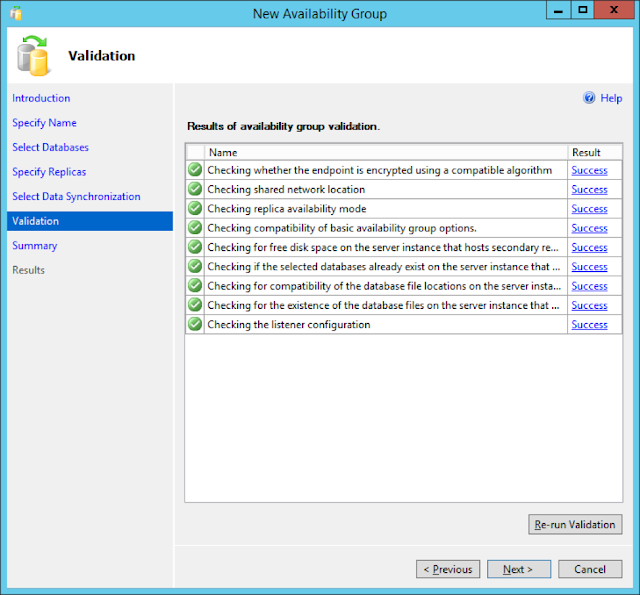
In the next step, the wizard will validate the configurations done so far
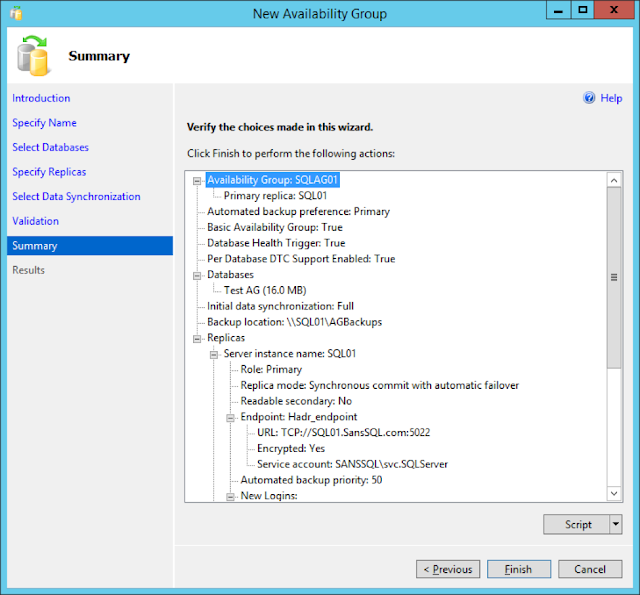
Review the Summary page and Click Finish to start the Availability Group Configuration
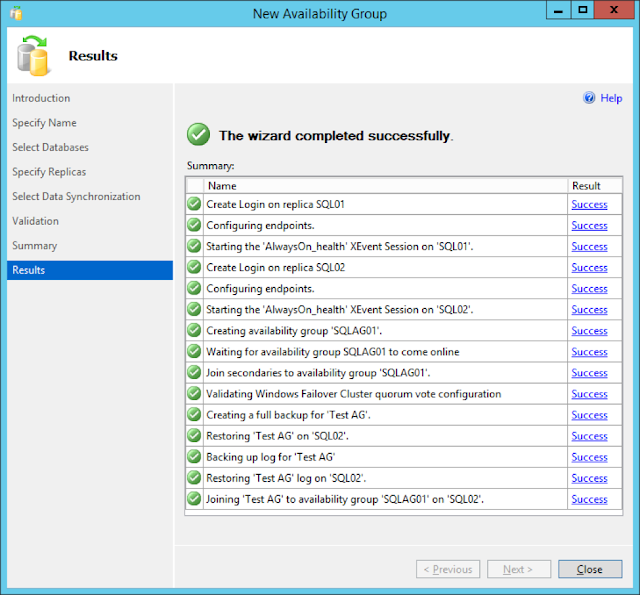
Successful completion of this wizard will create the new Availability Group with the specified databases, endpoints and the listener.
Wednesday, February 17, 2016
Configuring AlwaysOn Availability Groups - Part 1 - Configuring Failover Cluster
The AlwaysOn Availability Groups feature is a high-availability and disaster-recovery solution that provides an enterprise-level alternative to database mirroring. Introduced in SQL Server 2012, AlwaysOn Availability Groups maximizes the availability of a set of user databases for an enterprise. An availability group supports a failover environment for a discrete set of user databases, known as availability databases, that fail over together. An availability group supports a set of read-write primary databases and one to eight sets of corresponding secondary databases. Optionally, secondary databases can be made available for read-only access and/or some backup operations.
In the process of configuring AlwaysOn Availability Groups, the first step is to configure Failover Clustering on the participating servers.
To configure the Failover Cluster
Open "Server Manager" and choose "Add Roles and Features"
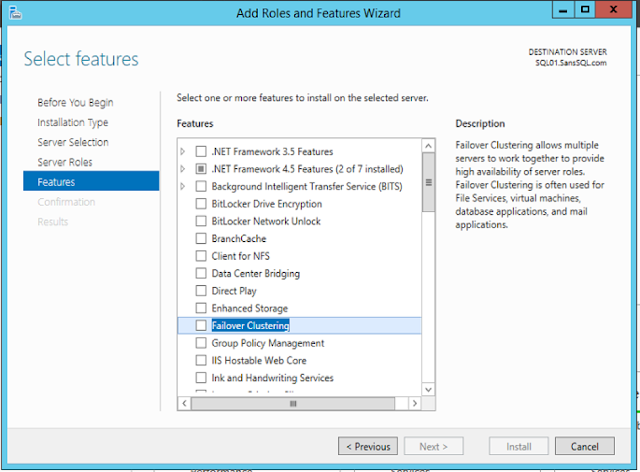
Select "Failover Clustering" and Add Dependency Features
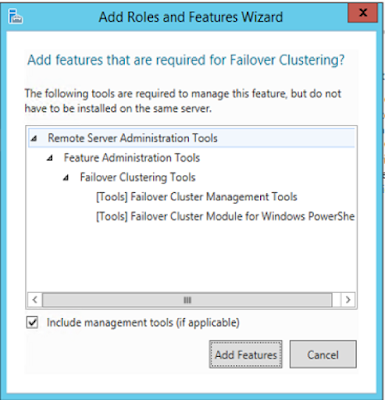
Add Features and Click Next
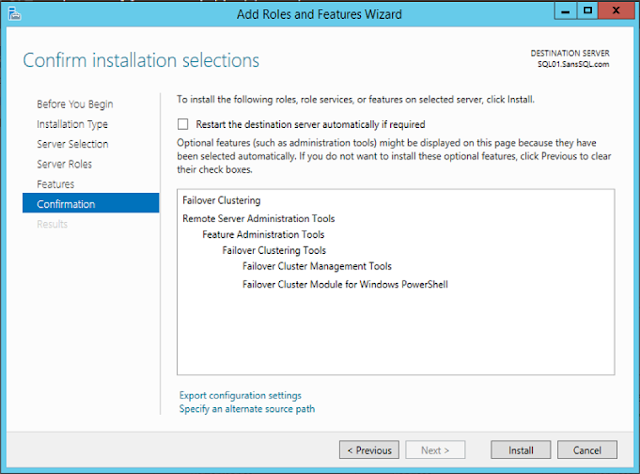
Once you click next, the wizard will start the installation
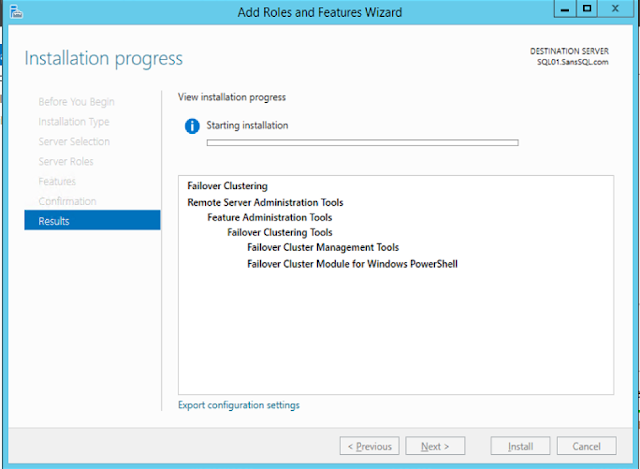
With this, the required failover clustering components are installed.
Now we need to create the cluster and before that we need to validate the participating servers for creating cluster.
Open "Failover Cluster Manager" and choose "Validate Configuration"
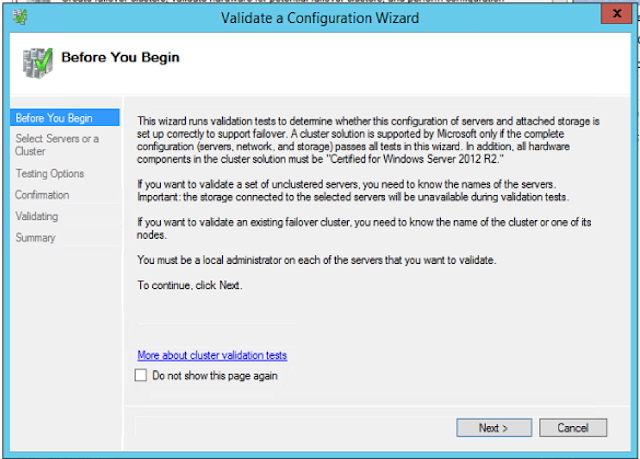
Click Next
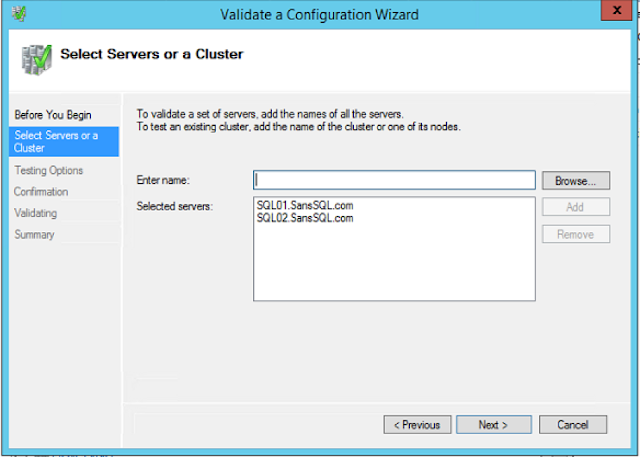
Add the Servers
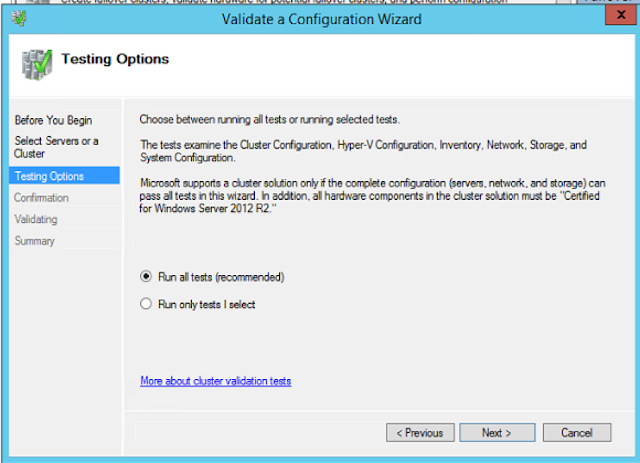
Choose to Run All Tests and Click Next
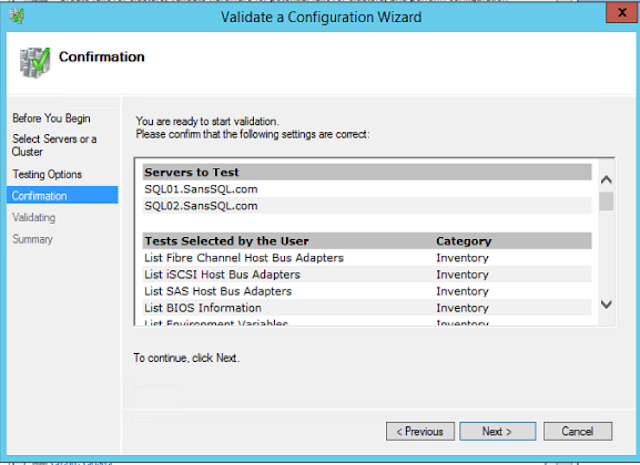
Click Next in the confirmation page
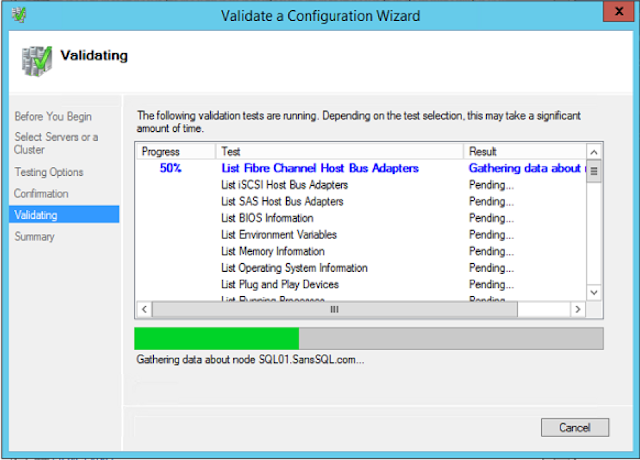
You can ignore the disk related warning in the case of AlwaysOn
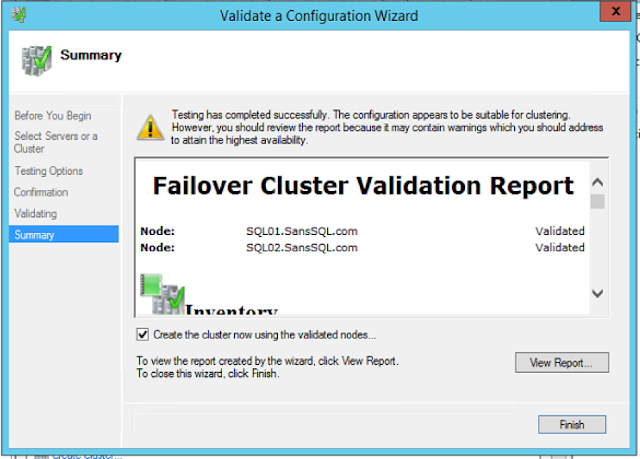
Click Finish and Create the new Cluster
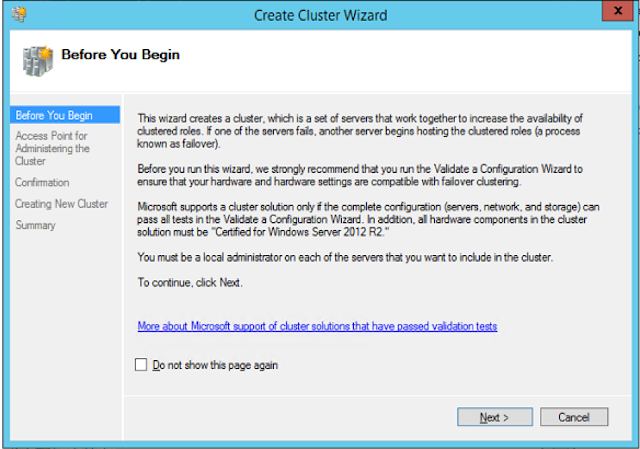
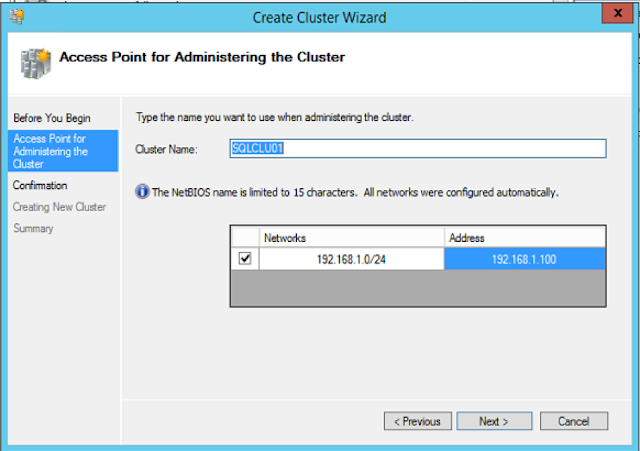
Assign a Name and IP to the cluster
Uncheck "Add all eligible Storage to the Cluster" and click next
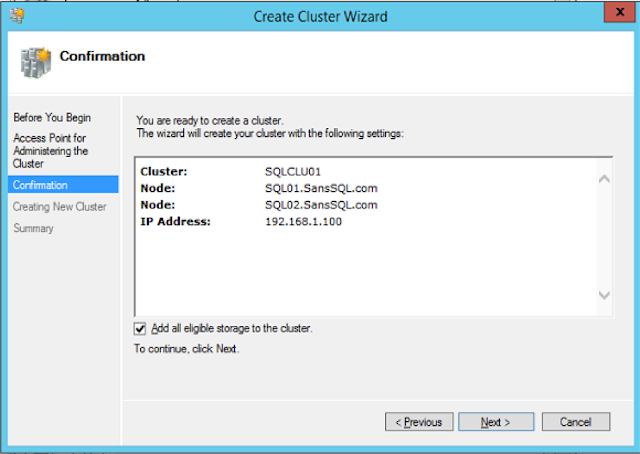
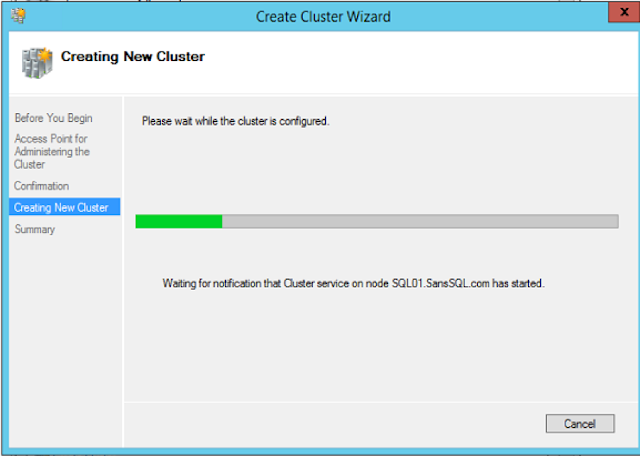
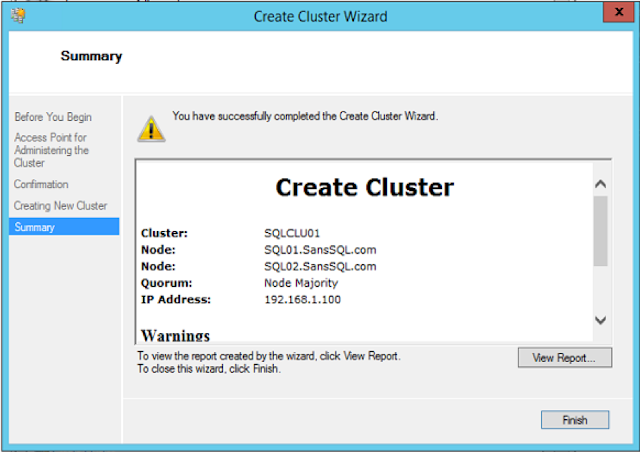
On the successful completion of this wizard, the process of configuring the cluster will be completed.
Now we are all set to configure AlwaysOn Availability Groups.
In the next post, we will learn how to Enable and Configure the AlwaysOn Availability Groups using SQL Server 2016.
Subscribe to:
Posts (Atom)