This video explains on who can see what content when Power BI content is created or shared across the license types.


Friday, August 5, 2022
Using Custom fonts in Power BI
Saturday, July 16, 2022
Unzip and extract file contents to Power BI
This video describes how to unzip and extract file contents to Power BI. Reading zip files without extracting them.
Link to Mark's Blog: https://sql10.blogspot.com/2016/06/reading-zip-files-in-powerquery-m.html
Friday, July 15, 2022
Display Alternate text when a image URL is not present in Power BI
This video describes how to display alternate text when there is no data present for the image URL in Power BI.
Tuesday, August 30, 2016
How to use SSRS reports as Data Source in Excel
As we all know SSRS is a server-based reporting platform that allows to create and manage a wide variety of reports, and deliver them in a range of formats, but many of them are still addicted to the excel for reporting as it is more convenient and easy to use.
In this post, let us learn how to use SSRS report as Data Source for Excel Reporting.
First of all, we need to enable Data Analysis in Excel and then continue importing data from SSRS into Excel.
Go to "Data" tab and Click "manage Data Model".

On the pop-up click "Enable" to enable the data analysis add-ins.




In this post, let us learn how to use SSRS report as Data Source for Excel Reporting.
First of all, we need to enable Data Analysis in Excel and then continue importing data from SSRS into Excel.
Go to "Data" tab and Click "manage Data Model".
On the pop-up click "Enable" to enable the data analysis add-ins.
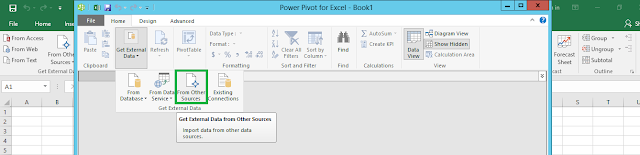
In the Power Pivot for excel pop-up, click on "Get External Data" and choose "From Other Sources".
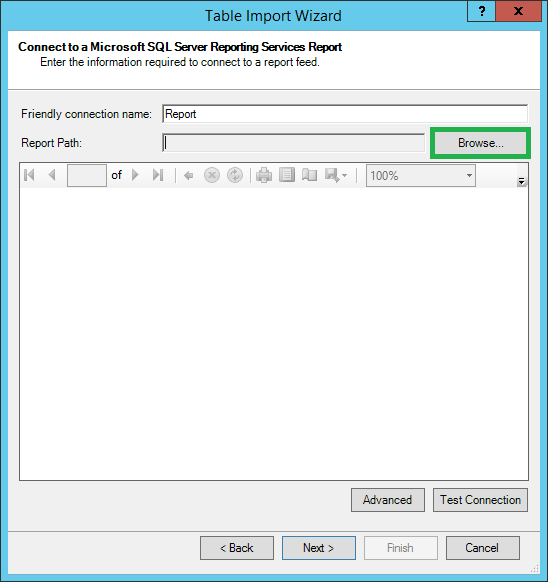
Choose "Report" in the "Connect to a Data Source" pop up.
Next, Choose the Report Path which you want to use as the source.
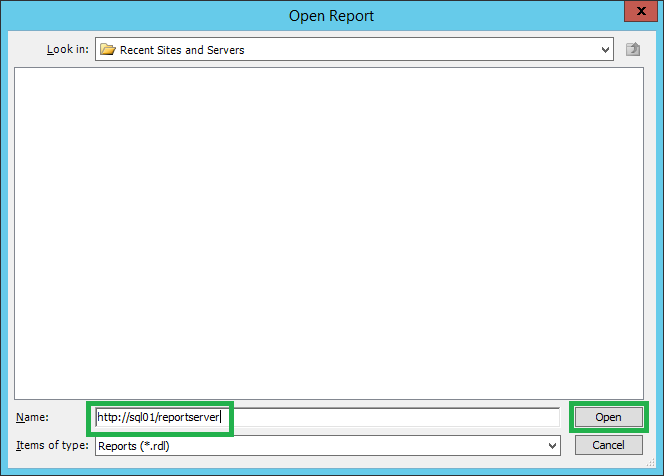
In the Name box, type in the ReportServer URL and choose "Open".
Then Navigate to the rdl file.
Choose the rdl file and click "Open".
Once the rdl file is chosen, you can preview the report and click next.
Then choose the data table/view under the report and click "Finish".
Click Close on the successful completion of the import.
This is now import the data into the excel for further reporting.
Now go back to the excel and choose "Pivot Table" from the "Insert" tab.
And choose the Report connection that we previously imported.
Then choose where to create the new Pivot table.
Now you can create your own reports out of this data using the excel which is more convenient for you.
Friday, July 8, 2016
Embed SSRS Report into PowerPoint Slides
Presentations are one major activity in each and everyone's career. There are different ways of presenting your information, some does it just by showing the static data and some wants to do it with the Live data. We are the people who are of type 2, presenting the live data. But when it comes to presenting live data, it is through reports.
How beautiful it will be if we have the option to interact with the Live data from a PowerPoint Presentation?
In this post, we shall learn how to embed SSRS report into PowerPoint Slides.
Before we begin, we need


How beautiful it will be if we have the option to interact with the Live data from a PowerPoint Presentation?
In this post, we shall learn how to embed SSRS report into PowerPoint Slides.
Before we begin, we need
- A Web Viewer add-in for PowerPoint
- Report URL to embed in the PowerPoint
Open a PowerPoint Presentation, go to "Insert" Tab and Click on "Store"
Now search for "web viewer" add-in and Click "Add". This is an add-in from Microsoft.
Once you click "Add", this is add the add-in into your slide and it looks like this
Now Insert your SSRS Report Server URL into the URL box and hit "Preview".
This was my URL https://sql01.sanssql.com/ReportServer/Pages/ReportViewer.aspx?%2fAdventureWorks+Sample+Reports%2fCompany+Sales&rs:Command=Render&rc:Toolbar=False
And that's it, Now your Slide will Load the data from SSRS Report.
Now you can interact (Drill Down or Drill Through, etc...) with the data depending on the report type.
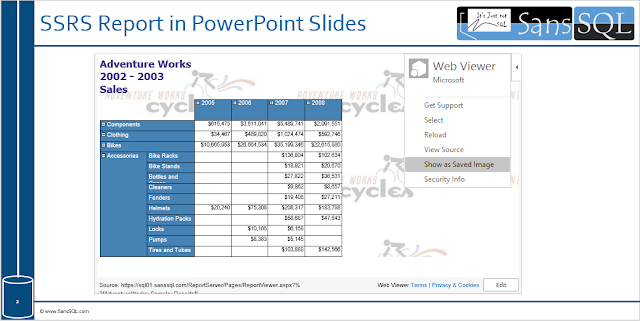
If you want to show a static image, then click on the small left arrow on the top right of the add-in and choose "Show as Saved Image" and this is display the data in the image format.
Now your presentations will be more fun with the Live Data.
Wednesday, July 6, 2016
How to Enable Remote Errors in SSRS
Enabling Remote Errors includes external error information (for example, error information about report data sources) with the error messages that are returned for users who request reports from remote computers. By default the remote errors in SSRS is set to false, which means error messages in a multi-server environment are not detailed.
Enable Remote Errors by using the Report Server Properties
Enable Remote Errors by using the Report Server Properties
- Open SQL Server Management Studio (SSMS) and connect to the Report Server
- Right-Click on Report Server and Choose "Properties"

- Navigate to the "Advanced" Page and set the "EnableRemoteErrors" to "True" and Click "OK"

Enable Remote Errors by Modifying the ConfigurationInfo table
USE ReportServer GO UPDATE ConfigurationInfo SET [Value] = 'True' WHERE Name = 'EnableRemoteErrors'Note: If you modify the setting in the database, you need to restart the Reporting Services service before the changes take effect.
Monday, June 20, 2016
List all Shared Data Sources
Here is a handy script to list all the Shared Data Sources from the ReportServer Database.
WITH BasicData AS
(
SELECT CONVERT(VARBINARY(MAX),Content) AS Content,
[Catalog].Name,[Path],ConnectionString FROM [Catalog] INNER JOIN DataSource
ON [Catalog].ItemID=DataSource.ItemID
WHERE [Type]=5 -- Type=5, Filters Shared Data Sources
)
,DataWithXML AS
(
SELECT
Name, [Path], CONVERT(XML,Content) AS ContentXML
FROM BasicData
)
SELECT Name, [Path], ConnectionString.value('(text())[1]','nvarchar(max)') AS ConnectionString
FROM DataWithXML
CROSS APPLY DataWithXML.ContentXML.nodes('//*:ConnectString') AS ConnectionStrings(ConnectionString)

Wednesday, April 8, 2015
SSRS reports not visible on Google Chrome or Safari
Have you developed a new report in SSRS 2012?
Yes,
Is it working on IE?
Yes.
Okay, is it working on Chrome?
No.
Okay, is it working on Safari?
No.
What's the issue?
Is the new report developed with proper logic?
Yes, No, Maybe?
Don't worry, if the report is working on IE then it should show up on other browsers.
There is an issue with the SSRS 2012. Chrome and Safari render "overflow: auto" option in different way than Internet Explorer.
To Fix this issue,
Yes,
Is it working on IE?
Yes.
Okay, is it working on Chrome?
No.
Okay, is it working on Safari?
No.
What's the issue?
Is the new report developed with proper logic?
Yes, No, Maybe?
Don't worry, if the report is working on IE then it should show up on other browsers.
There is an issue with the SSRS 2012. Chrome and Safari render "overflow: auto" option in different way than Internet Explorer.
To Fix this issue,
- Open the server where SSRS is installed
- Navigate to the path <SSRS Installation Path>\MSRS10_50.MSSQLSERVER\Reporting Services\ReportManager\js\
- Backup the file ReportingServices.js
- Edit the file ReportingServices.js and append the below code into it
function pageLoad() {
var element = document.getElementById("ctl31_ctl09");
if (element) {
element.style.overflow = "visible";
}
} - Save the file
Now you should be able to view the reports on Chrome and Safari.
The div name is not always ctl31_ctl09. So, if you are still unable to view the reports on chrome and safari after the change, make sure to replace the highlighted div name in the code to the right div name of yours. This could be found by looking at the HTML source of report URL from your browser.
Update:
Another workaround for this problem is through the CSS.
Update:
Another workaround for this problem is through the CSS.
- Open the server where SSRS is installed
- Navigate to the path <SSRS Installation Path>\MSRS10_50.MSSQLSERVER\Reporting Services\ReportManager\Styles\
- Backup the file ReportingServices.css
- Edit the file ReportingServices.css and append the below code into it
div {
overflow: visible !important;
} - Save the file
Saturday, November 15, 2014
Import data from SharePoint Online
It's all cloud could and cloud now-a-days. Everyone are moving towards the cloud for making life easier.
In this post I will be explaining on how to extract/Import data from SharePoint Lists which is hosted on SharePoint Online of Office 365 using SSIS.
There is no direct way to connect to the SharePoint Online using SSIS.
For connecting to SharePoint Online using SSIS, we need the below components installed before stating.
In this post I will be explaining on how to extract/Import data from SharePoint Lists which is hosted on SharePoint Online of Office 365 using SSIS.
There is no direct way to connect to the SharePoint Online using SSIS.
For connecting to SharePoint Online using SSIS, we need the below components installed before stating.
- Microsoft OData Source for Microsoft SQL Server 2012
Download from http://www.microsoft.com/en-in/download/details.aspx?id=42280 - SharePoint Server 2013 Client Components SDK
Download from http://www.microsoft.com/en-in/download/details.aspx?id=35585
Once you download and Install both the components,
- Open the Visual Studio and create a new Integration Services Package
- Drag and Drop "Data Flow Task"
- In the "Data Flow Task" Drag and Drop "OData Source"

- Right-Click on "OData Source" and Click Edit
- Enter the "Connection Manager Name" and "Service Document Location" For Service Document Location, append "/_vti_bin/listdata.svc" to the SharePoint site
For Office 365, we need to use "User this user name and password"
- Click "All" and change the "Microsoft Online Services Authentication" to True

- Click "Test Connection"

- Click "OK"
- Then Choose "Collection" in "User Collection or resource path"
- In the "Collection" choose the list you want to import
- When you click on "Preview..." you will be able to see the data from the list
- Now add the destination connection and run the package to import data from the SharePoint Online list
Monday, June 30, 2014
The connected user is not an Analysis Services server administrator
Consider a situation where you have installed the SQL Server Analysis Services and during installation, you forget to add the Analysis Services server administrator.
When you connect to the analysis services and try to do some administrative tasks then you are presented with the error "The connected user is not an Analysis Services server administrator."
 So now you do not have administrative privilege and no one is added into this rights and how to fix it?

When you connect to the analysis services and try to do some administrative tasks then you are presented with the error "The connected user is not an Analysis Services server administrator."
- Start SQL Server Management Studio as administrator >> "Run as Administrator"
- Go to "Security" Page
- Add user to the "Server Administrators" group
Tuesday, May 27, 2014
Reporting Services Error - The report server installation is not initialized. (rsReportServerNotActivated)
Recently, I had a task for restoring the Reporting Services database from a live environment to a test environment.
Right after the successful restore, I tried opening the Report Manager website and I was presented with the error "The report server installation is not initialized. (rsReportServerNotActivated)"
 This is because of the mismatch in the encryption key.
To fix this, either restore the encryption key from the live environment or delete the encryption key from the restored reporting services database.
The restoration or deletion of encryption key can be done by using the Reporting Services Configuration Manager.

Right after the successful restore, I tried opening the Report Manager website and I was presented with the error "The report server installation is not initialized. (rsReportServerNotActivated)"
To fix this, either restore the encryption key from the live environment or delete the encryption key from the restored reporting services database.
The restoration or deletion of encryption key can be done by using the Reporting Services Configuration Manager.
Tuesday, April 15, 2014
T-SQL query to find if a Report Server Database is configured in Native or Sharepoint Integration mode
Here is a T-SQL Query to find if a Report Server Database is configured in Native or Sharepoint Integration mode.
USE ReportServer$SQL2008R2 --Change the Database Name
GO
IF EXISTS (SELECT * FROM sys.objects WHERE NAME = 'ConfigurationInfo')
BEGIN

 DECLARE @Result nvarchar(max)
 SELECT @Result = Value FROM ConfigurationInfo
 WHERE NAME = 'SharePointIntegrated'
 PRINT CASE WHEN @Result= 'False' THEN 'The specified Report Server Database "'+ DB_NAME() + '" is configured in "NATIVE" mode'
      WHEN @Result = 'True' THEN 'The specified Report Server Database "'+ DB_NAME() + '" is configured in "SHAREPOINT INTEGRATION" mode'
    END
END
ELSE
BEGIN
DECLARE @DBName nvarchar(100)
SELECT @DBName = DB_NAME()
RAISERROR('The database %s is not a report server database',16,1,@DBName)
END
Friday, April 4, 2014
Location of SSRS config files - Sharepoint integration mode
When SSRS is configured in Sharepoint Integration Mode then the config files reside in a different location when compared to the normal installation.
The location where these files can be found are
C:\Program Files\Common Files\Microsoft Shared\Web Server Extensions\15\WebServices\Reporting
The below link provides a description of configuration files used for a SharePoint mode report server.
http://technet.microsoft.com/en-us/library/ms155866.aspx
The location where these files can be found are
C:\Program Files\Common Files\Microsoft Shared\Web Server Extensions\15\WebServices\Reporting
The below link provides a description of configuration files used for a SharePoint mode report server.
http://technet.microsoft.com/en-us/library/ms155866.aspx
Tuesday, March 4, 2014
Error while Provisioning Reporting Services Subscriptions in sharepoint
When trying to create subscriptions for SQL Server Reporting Services when hosted in SharePoint Integration mode , you might get an error which says
“The EXECUTE permission was denied on the object 'xp_sqlagent_notify', database 'mssqlsystemresource', schema 'sys'.”
“The EXECUTE permission was denied on the object 'xp_sqlagent_notify', database 'mssqlsystemresource', schema 'sys'.”
To Fix this issue,
- Login to Sharepoint central administration and navigate to the “Manage Reporting Services Application” page

- Click “Provision Subscriptions and Alerts”
- Click “Download Script” and this will download a file named “SSRS-GrantRights.sql”

- Execute the script on your SharePoint database server
Monday, March 3, 2014
Configure e-Mail for a Reporting Services Service Application – Sharepoint Integration mode
Here are the steps to configure STMP/e-mail for SSRS Service application in SharePoint integration mode.
- In SharePoint Central Administration, click the Application
Management

- In the Application Management page, under Service Applications group, click Manage service applications.

- In the list of configured applications, click on the name of your Reporting Services service application (SSRS).

- Click E-mail Settings on the Manage Reporting Services Application page.

- Select Use SMTP server In the Outbound SMTP server box, type the name of an SMTP server.In the From address box, type an e-mail address. This e-Mail address will be used as the sender of the e-mail alert.

- Click OK
Monday, November 25, 2013
Change SSAS Deployment mode from multidimensional to tabular mode without reinstalling Analysis Services
It so happens that sometimes minds change easily and things needs to be done without reinstalling.
One such case is changing the Deployment mode of SSAS from multidimensional to tabular mode in SQL Server 2012.
To change the deployment mode


One such case is changing the Deployment mode of SSAS from multidimensional to tabular mode in SQL Server 2012.
To change the deployment mode
- Backup the multidimensional Analysis services databases on the instance (if any)
- Detach the multidimensional Analysis services databases from the instance (if any). These databases will not be usable in tabular mode
- Navigate to the path "<Install Location>:\Program Files\Microsoft SQL Server\MSAS11.MSSQLSERVER\OLAP\Config" and backup the file "msmdsrv.ini"
- Open the file "msmdsrv.ini" and change the value of DeploymentMode to 2.
0 - Multidimensional
1 - SharePoint
2 - Tabular
- Re-Start the SQL Server Analysis services
SSAS multidimensional mode - Before Change
SSAS tabular mode - After Change
Monday, November 18, 2013
Data source name not found and no default driver specified - SSIS Error
Sometimes you might get the below error when you are trying to run a SSIS package which is trying to connect to a 32 bit system from a 64 bit system/driver.
| [DataReader Source [320]] Error: System.Data.Odbc.OdbcException: ERROR [IM002] [Microsoft][ODBC Driver Manager] Data source name not found and no default driver specified at Microsoft.SqlServer.Dts.Runtime.Wrapper.IDTSConnectionManager90.AcquireConnection(Object pTransaction) at Microsoft.SqlServer.Dts.Pipeline.DataReaderSourceAdapter.AcquireConnections(Object transaction) at Microsoft.SqlServer.Dts.Pipeline.ManagedComponentHost.HostAcquireConnections(IDTSManagedComponentWrapper90 wrapper, Object transaction) |
To fix this error:
- Go to "Solution Explorer"
- Right-Click on the Project and choose "Properties"
- Expand "Configuration Properties" and choose "Debugging"
- Set the "Run64BitRuntime" option to "False"
- Click "ok" and save the project

Tuesday, November 12, 2013
Connect to SSIS service on machine failed: Error loading type library/DLL
When connecting to an SSIS instance on a newly installed system you might be sometimes presented with the error "Connect to SSIS service on machine <Machine Name> failed: Error loading type library/DLL"

Monday, August 26, 2013
Manage SSIS packages saved in multiple instances of SQL Server
Consider a situation where you have multiple instances of SQL Server installed on a single server and each instance has multiple SSIS packages store within the msdb.
Also we know that the SQL Server Integration services is not instance aware which means we cannot install more than one instance of SSIS on one server.
Now the question is how can we manage SSIS packages stored on the different SQL Server instances?
The Solution for this is very simple and can be achieved by modifying the SQL Server integration services configuration file to include the second instance. By default, the configuration file will include the SQL Server instance which was installed first and we have to add the additional SQL Server instances to this config file.
The name of the config file is "MsDtsSrvr.ini.xml" and will be usually located at "C:\Program Files\Microsoft SQL Server\100\DTS\Binn" and for SQL Server 2005 at "C:\Program Files\Microsoft SQL Server\90\DTS\Binn"
Before modifying the file

Now for this file, I will add one more SQL Server instance so that I can manage SSIS packages from 2 SQL Server instance with a single instance of integration services.
After modifying the file we need to restart the SQL Server integration server services in order to reflect the changes made.

Also we know that the SQL Server Integration services is not instance aware which means we cannot install more than one instance of SSIS on one server.
Now the question is how can we manage SSIS packages stored on the different SQL Server instances?
The Solution for this is very simple and can be achieved by modifying the SQL Server integration services configuration file to include the second instance. By default, the configuration file will include the SQL Server instance which was installed first and we have to add the additional SQL Server instances to this config file.
The name of the config file is "MsDtsSrvr.ini.xml" and will be usually located at "C:\Program Files\Microsoft SQL Server\100\DTS\Binn" and for SQL Server 2005 at "C:\Program Files\Microsoft SQL Server\90\DTS\Binn"
Before modifying the file
Now for this file, I will add one more SQL Server instance so that I can manage SSIS packages from 2 SQL Server instance with a single instance of integration services.
After modifying the file we need to restart the SQL Server integration server services in order to reflect the changes made.
Subscribe to:
Posts (Atom)