SansSQL: SQL Server Reporting Services

Friday, July 8, 2016

Embed SSRS Report into PowerPoint Slides

Presentations are one major activity in each and everyone's career. There are different ways of presenting your information, some does it just by showing the static data and some wants to do it with the Live data. We are the people who are of type 2, presenting the live data. But when it comes to presenting live data, it is through reports.
How beautiful it will be if we have the option to interact with the Live data from a PowerPoint Presentation?
In this post, we shall learn how to embed SSRS report into PowerPoint Slides.

Before we begin, we need
  1. A Web Viewer add-in for PowerPoint
  2. Report URL to embed in the PowerPoint
Open a PowerPoint Presentation, go to "Insert" Tab and Click on "Store"

Now search for "web viewer" add-in and Click "Add". This is an add-in from Microsoft.

Once you click "Add", this is add the add-in into your slide and it looks like this

Now Insert your SSRS Report Server URL into the URL box and hit "Preview". 
This was my URL https://sql01.sanssql.com/ReportServer/Pages/ReportViewer.aspx?%2fAdventureWorks+Sample+Reports%2fCompany+Sales&rs:Command=Render&rc:Toolbar=False 
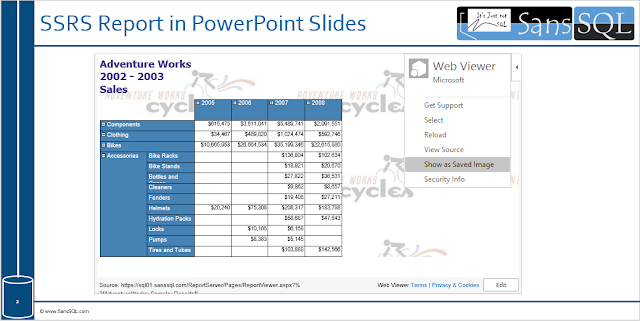
And that's it, Now your Slide will Load the data from SSRS Report.

Now you can interact (Drill Down or Drill Through, etc...) with the data depending on the report type. 
If you want to show a static image, then click on the small left arrow on the top right of the add-in and choose "Show as Saved Image" and this is display the data in the image format.

Now your presentations will be more fun with the Live Data.

Wednesday, July 6, 2016

How to Enable Remote Errors in SSRS

Enabling Remote Errors includes external error information (for example, error information about report data sources) with the error messages that are returned for users who request reports from remote computers. By default the remote errors in SSRS is set to false, which means error messages in a multi-server environment are not detailed.

Enable Remote Errors by using the Report Server Properties
  1. Open SQL Server Management Studio (SSMS) and connect to the Report Server
  2. Right-Click on Report Server and Choose "Properties"
  3. Navigate to the "Advanced" Page and set the "EnableRemoteErrors" to "True" and Click "OK"
Enable Remote Errors by Modifying the ConfigurationInfo table
USE ReportServer
GO
UPDATE ConfigurationInfo
SET [Value] = 'True'
WHERE Name = 'EnableRemoteErrors'
NoteIf you modify the setting in the database, you need to restart the Reporting Services service before the changes take effect.

Tuesday, September 2, 2014

T-SQL to find Job Name of Subscribed Reports

Here is an handy T-SQL script which gives information about your subscribed reports in SSRS.

USE ReportServer
GO
SELECT 
   SJ.name AS JobName
  ,Cat.Name AS ReportName
  ,Sub.Description AS SubscriptionDescription
  ,Cat.Path AS ReportPath
  ,Sub.DeliveryExtension AS SubscriptionDeliveryType
  ,Sub.LastStatus
  ,Sub.EventType
  ,SJ.date_created AS SubscriptionCreatedDate
  ,SJ.date_modified AS SubscriptionModifiedDate
FROM msdb.dbo.sysjobs SJ
INNER JOIN ReportSchedule RS ON SJ.name=CAST(RS.ScheduleID AS VARCHAR(max))
INNER JOIN Subscriptions Sub ON Sub.SubscriptionID=RS.SubscriptionID
INNER JOIN Catalog Cat ON Cat.ItemID=Sub.Report_OID

Tuesday, May 27, 2014

Reporting Services Error - The report server installation is not initialized. (rsReportServerNotActivated)

Recently, I had a task for restoring the Reporting Services database from a live environment to a test environment.
Right after the successful restore, I tried opening the Report Manager website and I was presented with the error "The report server installation is not initialized. (rsReportServerNotActivated)"

This is because of the mismatch in the encryption key.
To fix this, either restore the encryption key from the live environment or delete the encryption key from the restored reporting services database.
The restoration or deletion of encryption key can be done by using the Reporting Services Configuration Manager.


Ads