SansSQL: Troubleshooting

Monday, November 18, 2013

Data source name not found and no default driver specified - SSIS Error

Sometimes you might get the below error when you are trying to run a SSIS package which is trying to connect to a 32 bit system from a 64 bit system/driver.

[DataReader Source [320]] Error: System.Data.Odbc.OdbcException: ERROR [IM002] [Microsoft][ODBC Driver Manager] Data source name not found and no default driver specified at Microsoft.SqlServer.Dts.Runtime.Wrapper.IDTSConnectionManager90.AcquireConnection(Object pTransaction) at Microsoft.SqlServer.Dts.Pipeline.DataReaderSourceAdapter.AcquireConnections(Object transaction) at Microsoft.SqlServer.Dts.Pipeline.ManagedComponentHost.HostAcquireConnections(IDTSManagedComponentWrapper90 wrapper, Object transaction)

To fix this error:
  1. Go to "Solution Explorer"
  2. Right-Click on the Project and choose "Properties"
  3. Expand "Configuration Properties" and choose "Debugging"
  4. Set the "Run64BitRuntime" option to "False"
  5. Click "ok" and save the project

Friday, November 1, 2013

Importance of DAILY CHECK LIST!

Here I am, back from long holidays to my blogs! I was thinking of writing in which happens to be part of any DBA on production support (it can different levels as such).  So, have chosen to blog the importance of Daily Check list.

Daily check list:

The following is purely what we have adopted as part of the routine daily check. The check can be done at one time everyday and at a convenient time so that we don't miss anything.

First thing, we have selected list of servers which are very critical for the business and have to be part of check list.

Friday, July 13, 2012

SQL Gatherer Warnings in Event Viewer

Few days back, during my routine check on the main Production Server came across the following.

Event Type: Warning  Event Source: Microsoft SearchEvent Category: Gatherer Event ID: 3035
Date:  4/24/2012
Time:  6:02:37 PM
User:  N/A
Computer: XXXXXXXX
Description: One or more warnings or errors for Gatherer project <SQLServer SQL0000800008> were logged to file <Z:\MSSQL\GatherLogs\SQL0000800008.13.gthr>. If you are interested in these messages, please, look at the file using the gatherer log query object (gthrlog.vbs, log viewer web page).
 For more information, see Help and Support Center at http://go.microsoft.com/fwlink/events.asp.

When I noticed this warning for the first time, it was something to ignore... yes, it was! But, before making decision any warnings or errors on critical servers need to be checked thorougly. so, did I...

I started looking in for more and more details... asking myself!

First of all, Is this really an ERROR to worry or just warning information?

Referring to Event Type these are just informational messages. In our case these are related to the deletes of rows that are not in the SQL table, but are in the FT(Full Text) Catalog during the Incremental Population. There can be instances of these occurring with respect to OS, Sharepoint also.

BTW, how did I come to know that the information was something to do with Full text Population... :O
This is something we HAVE to know!

Ok, I just presented the reason for the message first and then thought of explaining how did I get to know? ;) Continue reading...

Once we know that these are just information; how do we read the errors? Microsoft has provided a utility called Gthrlog.vbs Utility to view Gather Logs.

For more information on the usage of utility one can infer to the below link.


From the utility, I inferred the following: Please note this is only with respect to the error presented above. This clearly shows that there are some objects missing :O but nothing to worry as such :) all is well in the Database.

Copyright (C) Microsoft Corporation 1996-2001. All rights reserved.7/7/2009 2:01:48 PM       MSSQL75://SQLServer/693a71d5/006CC558         Modify Error fetching URL, (80041201 - The object was not found.  )7/7/2009 6:46:40 PM       MSSQL75://SQLServer/693a71d5/006046FF         Modify Error fetching URL, (80041201 - The object was not found.  )7/7/2009 8:12:38 PM       MSSQL75://SQLServer/693a71d5/006999C4         Modify Error fetching URL, (80041201 - The object was not found.  ) 

Finally, What is"Gatherer" ?

Gatherer component is responsible for scheduling and driving full text index population. Its basically a component provided with SQL Server. It retrieves textual and binary data from database tables, streaming the content to filters for indexing. Now, we may need to understand full text indexing.

So, here we go... One of the best sites I have come across to understand the "Full Text Indexing" in SQL Server. Please do read this.


That is all for now... Please leave your comments and suggestions!

Monday, June 25, 2012

T-SQL Query to get SQL Server Start time and Uptime

Below query gives the SQL Server Start time and Up time details.
This option is available from SQL Server 2008 and above and requires "VIEW SERVER STATE" permission to execute the query
SELECT sqlserver_start_time AS [SQL Server Start Time]
   ,CAST (DATEDIFF(MINUTE,sqlserver_start_time,GETDATE())/60 AS VARCHAR) + ' Hours ' 
   +CAST (DATEDIFF(MINUTE,sqlserver_start_time,GETDATE())%60 AS VARCHAR) + ' Minutes' AS [Uptime]
FROM sys.dm_os_sys_info

Friday, June 22, 2012

Report Builder 3.0 Error - Unable to connect to the server that is specified in the URL

Consider you built a report using Report Builder 3.0 and now you are deploying the same to your report server. Suddenly the Report Builder presents you with a error which says the below

Connection failed.
Unable to connect to the server that is specified in the URL,'http://<servername>/<ReportServer>'.
Make sure the server is running, the URL is correct, and you have permission to use the server. 


Solution:
Make sure that the SQL Server Version is SQL Server 2008 R2 as Report Builder 3.0 does not support SQL Server 2008 or below.

Wednesday, January 11, 2012

Replication Error - SQL Server replication requires the actual server name to make connection to the server

Sometimes when we try to configuration relpication we might receive the below error which says that "SQL Server replication requires the actual server name to make connection to the server"

This can happen during the situations
  1. When you are connected to the server in object explorer using the IP address
  2. When the actual server host name hosting the SQL server database engine is changed
In the first case we can solve this issue by connecting to the server with the host name.

In the second case, to fix the issue we need to update the system catalogs by dropping and adding the server and restarting the SQL Server services. The updation of system catalogs can be done using the below queries.

USE master 
GO
EXEC sp_dropserver 'OldServerName'

USE master 
GO
EXEC sp_addserver 'NewServerName',local

Tuesday, June 7, 2011

SQL Server 2008 Service fails to start after Service Pack Installation

Some times you may find that the SQL Server Service is not starting after applying a service pack and when you check in the Event Viewer you find the below message.

Script level upgrade for database 'master' failed because upgrade step 'sqlagent100_msdb_upgrade.sql' encountered error 598, state 1, severity 25. This is a serious error condition which might interfere with regular operation and the database will be taken offline. If the error happened during upgrade of the 'master' database, it will prevent the entire SQL Server instance from starting. Examine the previous errorlog entries for errors, take the appropriate corrective actions and re-start the database so that the script upgrade steps run to completion.

SQL Server Setup creates a database with the data file name temp_MS_AgentSigningCertificate_Database.mdf during the installation process and if the SQL Server setup is not able to create that database in the default data path then the above error is returned as it is not able to find the path.

To fix this issue.
  1. Go to Registry editor, To open this, go to "Run" and type "regedit" and click "ok"
  2. First go to this path and make sure that the path in the key SQLDataRoot exists. If not then give a valid path to this key.
    HKEY_LOCAL_MACHINE\SOFTWARE\Microsoft\Microsoft SQL Server\MSSQL10.<instance name>\Setup
  3. Then go to this path and make sure that the path in the keys "BackupDirectory", "DefaultData" and "DefaultLog" exists. If not then give a valid path to these keys.
    HKEY_LOCAL_MACHINE\SOFTWARE\Microsoft\Microsoft SQL Server\MSSQL10.<instance name>\MSSQLServer
  4. Now you should be able to start the SQL Server Service without any issues.
Once the Service is started, verify the SQL Server, databases and others to make sure everything is fine.
Also verify if the Service pack or the CU is installed correctly.

Sunday, March 13, 2011

T-SQL Query to find the date when was DBCC CHECKDB Last run

As a Database Administrator, we know the importance of DBCC CHECKDB and will run this command to check the logical and physical integrity of all objects in the specified database.
When DBCC CHECKDB is run on a database, it does the following actions
  • Runs DBCC CHECKALLOC on the database
  • Runs DBCC CHECKTABLE on every table and view in the database
  • Runs DBCC CHECKCATALOG on the database
  • Validates the contents of every indexed view in the database
  • Validates Service Broker data in the database
Before you start the DBCC CHECKDB on a database you might want to know the date and time when this command was lust run by you or someone else from your team.
Prior to SQL Server 2005, this data was not getting logged in the system. But in SQL Server 2005 onwards this data is getting logged in the system and using the below script you can find the date and time when DBCC CHECKDB was last run on a database.
CREATE TABLE #DBInfo (
       Id INT IDENTITY(1,1),
       ParentObject VARCHAR(255),
       [Object] VARCHAR(255),
       Field VARCHAR(255),
       [Value] VARCHAR(255)
)

CREATE TABLE #Value(
DatabaseName VARCHAR(255),
LastDBCCCHeckDB_RunDate VARCHAR(255)
)

EXECUTE SP_MSFOREACHDB'INSERT INTO #DBInfo Execute (''DBCC DBINFO ( ''''?'''') WITH TABLERESULTS'');
INSERT INTO #Value (DatabaseName) SELECT [Value] FROM #DBInfo WHERE Field IN (''dbi_dbname'');
UPDATE #Value SET LastDBCCCHeckDB_RunDate=(SELECT TOP 1 [Value] FROM #DBInfo WHERE Field IN (''dbi_dbccLastKnownGood'')) where LastDBCCCHeckDB_RunDate is NULL;
TRUNCATE TABLE #DBInfo';

SELECT * FROM #Value

DROP TABLE #DBInfo
DROP TABLE #Value

The Script can be downloaded from here.

Sunday, February 27, 2011

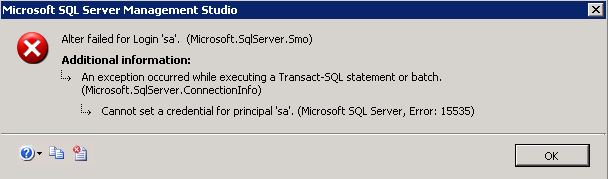
ERROR - Cannot set a credential for principal 'sa'

You may sometimes receive an error which says "Cannot set a credential for principal 'sa'" while you are trying to alter the login 'sa' in SQL Server 2005 or SQL Server 2008.


This happens because, the SQL Server tries to drop any credential that is mapped to your login credentials while altering and because your credential cannot be set to "sa" login, you will receive this error.
FIX:
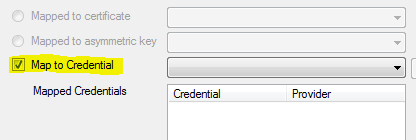
Fix for this error is very simple. Just make sure that the option "Map to Credential" is checked in the "General" tab of the Login Properties Page.


Referencehttp://support.microsoft.com/kb/956177

Tuesday, February 15, 2011

Error while configuring Change Data Capture (CDC)

I was trying to configure Change Data Capture (CDC) on my system a while ago and I noticed that i did not had a test database on the newly installed Instance. So I backed up the AdventureWorks database from an existing instance on my laptop and restored on the new Instance.
Okay, Now after the restoration, I executed "Exec sys.sp_cdc_enable_db" command to enable CDC on the database but the database did not allow me to enable CDC by giving the below error.

Msg 22830, Level 16, State 1, Procedure sp_cdc_enable_db_internal, Line 186
Could not update the metadata that indicates database CDC_AdventureWorks is enabled for Change Data Capture. The failure occurred when executing the command 'SetCDCTracked(Value = 1)'. The error returned was 15517: 'Cannot execute as the database principal because the principal "dbo" does not exist, this type of principal cannot be impersonated, or you do not have permission.'. Use the action and error to determine the cause of the failure and resubmit the request.
Msg 266, Level 16, State 2, Procedure sp_cdc_enable_db_internal, Line 0
Transaction count after EXECUTE indicates a mismatching number of BEGIN and COMMIT statements. Previous count = 0, current count = 1.
Msg 266, Level 16, State 2, Procedure sp_cdc_enable_db, Line 0
Transaction count after EXECUTE indicates a mismatching number of BEGIN and COMMIT statements. Previous count = 0, current count = 1.
Msg 3998, Level 16, State 1, Line 1
Uncommittable transaction is detected at the end of the batch. The transaction is rolled back.

This is because, the Database Owner was Invalid on the new Instance as the Login that was DBOwner in the other Instance was not present in the new Instance.
SELECT name
        ,database_id
        ,USER_NAME(owner_sid) as DBOwner
FROM sys.databases WHERE name ='CDC_AdventureWorks'

Fix
: To Fix this error, change the owner of the database to 'sa' or a valid Login.

Use CDC_AdventureWorks
GO
Exec sp_changedbowner 'sa'
GO
Once you change the database owner to 'sa' or a valid Login you should be now able to enable CDC on that Database.


Saturday, February 12, 2011

Different ways to find the SQL Server Port Number

We all know that SQL Server by default listens to the port number 1433. But, due to security reasons, the default port number will/can be changed to a different port in order to minimize hacks on SQL Server.

There are many ways using which you can find the port number of the SQL server which it is listening to.
  1. Using the SQL Server Configuration Manager
  2. Using Registry
  3. Using Error Log
  4. etc...
Using SQL Server Configuration Manager:
Click Start >> Run
For SQL Server 2005 Type "SQLServerManager.msc" and click OK
For SQL Server 2008 Type "SQLServerManager10.msc" and click OK

This will Open the SQL Server Configuration Manager for you.
Now in the Left Pane, expand "SQL Server Network Configuration" and click on "Protocols for <InstanceName>"
Now In the right pane, right-click on the "TCP/IP" protocol and go to properties

In the TCP/IP properties, go to the "IPAddresses" Tab and scroll down and locate the section "IPAll"
In the "IPAll" Section, the "TCP Port" represents the Port Number SQL Server is listening to.

Note: <InstanceName> is your SQL Server Instance Name

Using Registry:
To find the SQL Server Port number using registry, execute the below query.
DECLARE @InstanceName nvarchar(50)
DECLARE @value VARCHAR(100)
DECLARE @RegKey_InstanceName nvarchar(500)
DECLARE @RegKey nvarchar(500)

SET @InstanceName=CONVERT(nVARCHAR,isnull(SERVERPROPERTY('INSTANCENAME'),'MSSQLSERVER'))

--For SQL Server 2000
if(SELECT Convert(varchar(1),(SERVERPROPERTY('ProductVersion'))))=8
BEGIN
if @InstanceName='MSSQLSERVER'
Begin
SET @RegKey='SOFTWARE\Microsoft\'+@InstanceName+'\MSSQLServer\SuperSocketNetLib\TCP\'
END
ELSE
BEGIN
SET @RegKey='SOFTWARE\Microsoft\Microsoft SQL Server\'+@InstanceName+'\MSSQLServer\SuperSocketNetLib\TCP\'
END

EXECUTE xp_regread
  @rootkey = 'HKEY_LOCAL_MACHINE',
  @key = @RegKey,
  @value_name = 'TcpPort',
  @value = @value OUTPUT
 
Select @@SERVERNAME as ServerName,@value as PortNumber
END

--For SQL Server 2005 and up
if(SELECT Convert(varchar(1),(SERVERPROPERTY('ProductVersion'))))<>8
BEGIN
SET @RegKey_InstanceName='SOFTWARE\Microsoft\Microsoft SQL Server\Instance Names\SQL'

EXECUTE xp_regread
  @rootkey = 'HKEY_LOCAL_MACHINE',
  @key = @RegKey_InstanceName,
  @value_name = @InstanceName,
  @value = @value OUTPUT

SET @RegKey='SOFTWARE\Microsoft\Microsoft SQL Server\'+@value+'\MSSQLServer\SuperSocketNetLib\TCP\IPAll'

EXECUTE xp_regread
  @rootkey = 'HKEY_LOCAL_MACHINE',
  @key = @RegKey,
  @value_name = 'TcpPort',
  @value = @value OUTPUT
 
Select @@SERVERNAME as ServerName,@value as PortNumber
END

Using Error Log:
To find the SQL Server Port number using error Log, execute the below query.
SET NOCOUNT ON
if(SELECT Convert(varchar(1),(SERVERPROPERTY('ProductVersion'))))=8
BEGIN
Create Table ##ErrorLog_2K
(ErrorLog nvarchar(1000),
ContinuationRow int )

INSERT INTO ##ErrorLog_2K
Exec master..xp_readerrorlog

SELECT DISTINCT @@SERVERNAME as[ServerName] , SUBSTRING(RIGHT(ErrorLog,5),1,4) as [PortNumber]
FROM ##ErrorLog_2K where ErrorLog like '%SQL Server listening on 1%'

DROP TABLE ##ErrorLog_2K
END

if(SELECT Convert(varchar(1),(SERVERPROPERTY('ProductVersion'))))<>8
BEGIN
Create Table ##ErrorLog
(Logdate datetime,
ProcessInfo nvarchar(100),
[Text] nvarchar(1000))

INSERT INTO ##ErrorLog exec master..xp_readerrorlog

SELECT DISTINCT @@SERVERNAME as[ServerName] , SUBSTRING(RIGHT(text,6),1,4) as [PortNumber]
FROM ##ErrorLog where text like 'Server is listening on % ''any'' %'

DROP TABLE ##ErrorLog
END
SET NOCOUNT OFF

You can download the scripts from here.
  1. SansSQL_FindPortNumber_UsingRegistry.sql
  2. SansSQL_FindPortNumber_UsingErrorLog.sql

Friday, January 21, 2011

SSRS Error - An Unexpected Error occurred in Report Processing (rsInternalError)

I was working on a SQL Server Reporting Services (SSRS) Report just a few minutes back and i thought my deployment of the report went fine and i can now view my deployed reports on the Report Manager site.
Assuming that everything went fine, I opened the Report Manager and there was a surprise awaiting for me.
And the surprise was, the Report Manager which was working fine till yesterday is now giving an error.
The error is:
An Unexpected Error occurred in Report Processing (rsInternalError)
Could not find a part of the path 'C:\Documents and Settings\SANSLAPTOP\ASPNET.SANSLAPTOP.000\Local Settings\Temp\brhx7gi1.tmp


Fix that worked for me
:
I manually went into each folder structure that is displayed as part of the error message and found that in my case, the folder "Temp"  was missing in the file system.
I created this folder and went back to my report manager and refreshed the page and the report manager started to work as before.

Saturday, January 8, 2011

How to clear most recently used (MRU) servers list

As the days move with your work on SQL Server management studio, it will accumulate the list of servers that you have been working on, starting from the point of installation of  SQL Server management studio.
This list is called as MRU servers list. Here MRU refers to Most Recently Used.
This makes your life easier by showing the most recently used servers by you and you can just select one from the list instead of remembering the server name and typing it manually.


As the list becomes big or the servers that you were using are no more used by you or for any other reasons you may want to clean up this list, Here is the process on how to clear the MRU servers list.

For SQL Server 2005
  1. Make sure that the "SQL Server management studio" is not opened
  2. Go to "Run"
  3. Type this command %APPDATA%\Microsoft\Microsoft SQL Server\90\Tools\Shell\ and click "ok". This will open up the folder where this list is stored
  4. Now search for the file "mru.dat" and rename this file.
  5. After renaming, launch the SQL Server management studio and you will not see any of the most recently used servers in the list.

For SQL Server 2008
  1. Make sure that the "SQL Server management studio" is not opened
  2. Go to "Run"
  3. Type this command %APPDATA%\Microsoft\Microsoft SQL Server\100\Tools\Shell\ and click "ok". This will open up the folder where this list is stored
  4. Now search for the file "SqlStudio.bin" and rename this file.
  5. After renaming, launch the SQL Server management studio and you will not see any of the most recently used servers in the list.

Friday, January 7, 2011

DTS packages in SQL Server 2005 and SQL Server 2008

As you all know that the DTS packages in SQL server 2000 is replaced by the giant called Integration Services which has more features than DTS, and DTS is no more supported in SQL Server 2005 and up.
To give a backward compatibility until the DTS packages are migrated(or converted by you) to SSIS packages, you can import the DTS packages into SQL Server 2005 and SQL Server 2008 and call them in the jobs to do their work.

These Imported packages will be present at the below location in SQL Server management Studio.
SQLServer>> Management>> Legacy>> Data Transformation Services.


The DTS packages under this path cannot be edited in SQL Server 2005 and SQL Server 2008.
For editing these packages, you need to install "DTS Designer Components"

If you want to edit DTS packages in SQL Server 2005 go here, download and install the component "SQLServer2005_DTS.msi"

If you want to edit DTS packages in SQL Server 2008 go here, download and install the component "SQLServer2005_BC.msi"

Once you install the DTS Designer Components, it will allow you to edit the DTS packages as you do in SQL Server 2000.
Just right-click on the package and choose the option "open" and this will open up the DTS designer for you.

I strongly recommend to convert the DTS packages to the SSIS packages as the support to DTS will be completed removed in future versions of SQL Server.

Saturday, January 1, 2011

Moving master database


Moving master database is a bit different process than moving any other system database.This has to be carried out very carefully and here is the process on how to move the master database.
Before doing anything, make sure you are having proper backups.
  1. Stop the SQL Services.
  2. Go to the "SQL Server Configuration Manager".
    In SQL Server 2005, Click "Start" >> "All Programs" >> "Microsoft SQL Server 2005" >> "Configuration Tools" >> SQL Server Configuration Manager
    In SQL Server 2008, Click "Start" >> "All Programs" >> "Microsoft SQL Server 2008" >> "Configuration Tools" >> SQL Server Configuration Manager
  3. In the left pane, click on "SQL Server Services" 
  4. Now in the right pane, select the SQL Server Service component  (which looks like "SQL Server (InstanceName)" ) and go to its properties.
  5. In the "Properties" page, go to the "Advanced" tab
  6. In the "Startup Parameters", click on the drop list and modify the parameters -d and -l to the new location where you want the master data file (master.mdf) and log file (mastlog.ldf) to reside respectively.

    -d stands for the fully qualified data file path of master database.
    -l stands for the fully qualified log file path of master database.
    -e stands for the fully qualified path of the error log file.

  7. Now move the files manually to the new location.
  8. Start the SQL Services.

Thursday, December 30, 2010

Moving model and msdb databases

Moving of model and msdb databases also follow the similar procedure as moving the tempdb database but with some additional steps.
Since these are also system databases, unfortunately we cannot move them just by detach and attach process, as we cannot attach or detach a system database.

Moving model database:
  1. First get the list of model database files by using this query
    select name,physical_name from sys.master_files where DB_NAME(database_id)='model'  
  2. Then for each model database file that you need to move, execute statements like below
    Alter Database model modify
    file (NAME = 'modeldev' ,
    FILENAME = 'Drive:\Path\model.mdf') -- Mention the new location

    Alter Database model modify
    file (NAME = 'modellog' ,
    FILENAME = 'Drive:\Path\modellog.ldf') -- Mention the new location
  3. Stop SQL Services
  4. Move the files manually to the new location
  5. Start SQL Services
  6. Verify the new Location
    select name,physical_name from sys.master_files where DB_NAME(database_id)='model'

Moving msdb database
:
  1. First get the list of msdb files by using this query
    select name,physical_name from sys.master_files where DB_NAME(database_id)='msdb'  
  2. Then for each msdb database file that you need to move, execute statements like below
    Alter Database msdb modify
    file (NAME = 'MSDBData' ,
    FILENAME = 'Drive:\Path\MSDBData.mdf') -- Mention the new location

    Alter Database msdb modify
    file (NAME = 'MSDBLog' ,
    FILENAME = 'Drive:\Path\MSDBLog.ldf') -- Mention the new location
  3. Stop SQL Services
  4. Move the files manually to the new location
  5. Start SQL Services
  6. Verify the new Location
    select name,physical_name from sys.master_files where DB_NAME(database_id)='msdb'
If the SQL Server Instance is configured with Database Mail option, then after the msdb movement you will have to verify that the database mail is working fine by sending a test email.

Tuesday, December 28, 2010

Moving the tempdb database

There are cases when you might want to move tempdb database from an existing drive to a new drive.
  1. When the drive is full and you are in a situation where you cannot extend that drive.
  2. Move tempdb to a separate drive to increase its performance.
This is a simple process and cannot be done by detaching and attaching the database, as we cannot attach or detach a system database.
Also we need to restart the SQL services.

Here is the process how we can move the tempdb to a new location.
  1. First get the list of tempdb files by using this query
  2. select name,physical_name from sys.master_files where DB_NAME(database_id)='tempdb'
  3. Then for each tempdb file that you need to move, execute statements like below
  4. Alter Database tempdb modify file (NAME = 'tempdev' ,
    FILENAME = 'Drive:\Path\tempdb.mdf') -- Mention the new location
    Alter Database tempdb modify file (NAME = 'templog' , FILENAME = 'Drive:\Path\templog.ldf') -- Mention the new location
  5. Stop SQL Services
  6. Start SQL Services
  7. Verify the new Location
    select name,physical_name from sys.master_files where DB_NAME(database_id)='tempdb'

Thursday, September 30, 2010

Report Login Failures

It sometimes become very critical in some environments that there are a huge login failures and needs to be reported to take appropriate action. To accommodate this type of situations, I have developed a stored proc which gives a report of Failed Login attempts in a specified Time Frame.
This SP expects a  parameter @TimeInMin which has a default value of 15 Minutes.


Create Proc ReportLoginFailure (@TimeinMin int =15)
As
/*
Author            :Sandesh Segu
Purpose           :To report the failed loing attempts if any in given 
                   range of time.
Version           :1.0
More Scripts      :http://sanssql.blogspot.com
*/

Declare @Count int
Create Table #ErrorLog
(ErrorLoggedDate DateTime,
ProcessInfo nvarchar(50),
ErrorText nvarchar(1000))

Insert into #ErrorLog exec sp_readerrorlog

Select @Count=Count(*) from #ErrorLog where ErrorText like 'Login failed for user%'
and datediff(Minute,ErrorLoggedDate,getdate())<=@TimeinMin

If @Count>0
      Begin
            Select Report=Cast(@Count As Varchar)+' Login Failures Reported in past '+Cast (@TimeinMin As varchar)+' Minutes.'
            Select * from #ErrorLog where ErrorText like 'Login failed for user%'
            and datediff(Minute,ErrorLoggedDate,getdate())<=@TimeinMin
      End
Else
      Select Report='No Login Failures Reported in the Specified Time Frame.'

Drop table #ErrorLog
GO

/*
Usage: Specify the time limit parameter in minutes for the SP. Default is 15 mins.
Exec ReportLoginFailure 600
*/


When there are no failures reported then the output will be:


When there are failures reported then the output will be:


Ads