SansSQL

Friday, September 16, 2011

Hide an Instance of SQL Server Database Engine

In one of my previous post "List of SQL Server instances currently installed in your network", I explained how to get the list of SQL server instances installed in your network.
Sometimes you might require an SQL Server instance to be not exposed to others due to some security reason. This can be done by using the "Hide" option available for an SQL Server instance.
Before Hiding an Instance:

Steps to Hide an Instance of SQL Server Database Engine
  1. Go to "SQL Server Configuration Manager"
  2. In the Left Pane Expand "SQL Server Network Configuration"
  3. Now Right Click on "Protocols for <ServerName>" and go to Properties for the server you need to hide.
  4. In the "Flags" Tab, change the option to "Yes" for "Hide Instance"
  5. Click on "Apply" and "OK"
  6. Now re-start the SQL Server Service for this Instance and you are done. This instance from now will be hidden.
After Hiding an Instance:

Friday, September 2, 2011

Get last backup details of all databases in a server

This stored procedure give you the information about latest backups happened on all databases in a server.
This SP works for SQL server 2005 and up.
Create Proc sp_BackupDetails
AS
DECLARE @BackupDetails table
([Server Name] nvarchar(500),
[Database Name] nvarchar(500),
[Last Full Backup] nvarchar(500),
[Last Differential Backup] nvarchar(500),
[Last Log Backup] nvarchar(500),
[Last File or filegroup Backup] nvarchar(500),
[Last Differential file Backup] nvarchar(500),
[Last Partial Backup] nvarchar(500),
[Last Differential Partial Backup] nvarchar(500)
)

DECLARE @DBName nvarchar(500)
Declare DBName Cursor for
Select name from sys.databases
Open DBName
Fetch Next from DBName into @DBName
While @@fetch_status = 0
BEGIN
Insert into @BackupDetails
select @@ServerName as [Server Name]
       ,SDB.name AS [Database Name]
       ,(select COALESCE(Convert(nvarchar(20), MAX(backup_finish_date), 100),'NA') from msdb..backupset where database_name=@DBName and type='D') AS [Last Full Backup]
       ,(Select COALESCE(Convert(nvarchar(20), MAX(backup_finish_date), 100),'NA') from msdb..backupset where database_name=@DBName and type='I') AS [Last Differential Backup]
       ,(Select COALESCE(Convert(nvarchar(20), MAX(backup_finish_date), 100),'NA') from msdb..backupset where database_name=@DBName and type='L') AS [Last Log Backup]
       ,(Select COALESCE(Convert(nvarchar(20), MAX(backup_finish_date), 100),'NA') from msdb..backupset where database_name=@DBName and type='F') AS [Last File or filegroup Backup]
       ,(Select COALESCE(Convert(nvarchar(20), MAX(backup_finish_date), 100),'NA') from msdb..backupset where database_name=@DBName and type='G') AS [Last Differential file Backup]
       ,(Select COALESCE(Convert(nvarchar(20), MAX(backup_finish_date), 100),'NA') from msdb..backupset where database_name=@DBName and type='P') AS [Last Partial Backup]
       ,(Select COALESCE(Convert(nvarchar(20), MAX(backup_finish_date), 100),'NA') from msdb..backupset where database_name=@DBName and type='Q') AS [Last Differential Partial Backup]
from sys.databases SDB
where SDB.name =@DBName
Fetch Next from DBName into @DBName
END
Close DBName
DEALLOCATE DBName

Select * from @BackupDetails
GO

Usage:
Exec sp_BackupDetails
go

Results:

Thursday, September 1, 2011

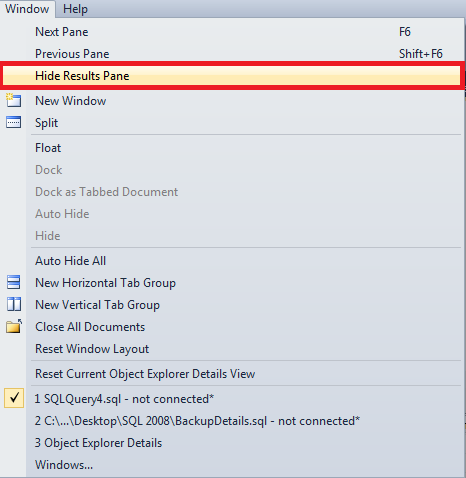
Denali CTP 3 - Show\Hide Results Pane keyboard shortcut not working - Ctrl+R not working

Recently I installed Denali CTP 3 version and was writing a code which is coming next in this blog. During that time I attempted to hide the results pane using the keyboard shortcut Ctrl+R and was surprised that the keyboard shortcut Ctrl+R was not working. When I investigated further I found that that the keyboard shortcut was not assigned to the command "Hide Results Pane".
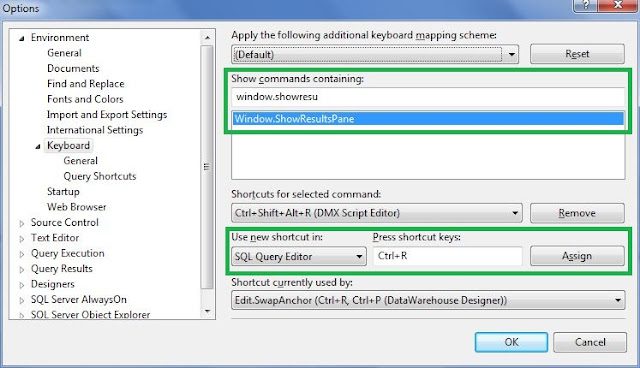
To fix this issue or to assign the keyboard shortcut to the command "Hide Results Pane", follow the below steps.
  1. In a SSMS window, go to "Tools" menu and choose "Options".
  2. In the left pane of "Options" window, expand "Environment" and then click on "Keyboard".
  3. In the right pane, Search for the command "Window.ShowResultsPane" Under "Show Commands Containing:" section and select that command
  4. Now, Under "Shortcuts for selected command:" section choose "SQL Query Editor" from the dropdown list of "Use new shortcut in:" sub-section.
  5. In the "Press shortcut keys:" sub-section place the cursor and press the keys "Ctrl" followed by "R" 
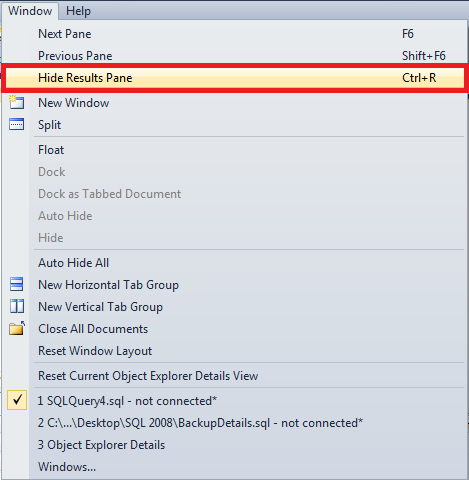
  6. Click on "Assign" button and click "OK" to exit the "Options" menu and start using the keyboard shortcut "Ctrl+R" to Hide\Show Results Pane. 


Sunday, August 14, 2011

Looping through SQL Servers using SSIS or Dynamically build connection to multiple SQL Servers

Consider you are giver a task of gathering information from multiple servers. What are the different ways you can automate this?
  1. Create linked servers in each server pointing to your central repository
  2. Create Separate SSIS package in each servers which loads data to your central repository
  3. Create one SSIS package with multiple data sources and duplicate the tasks for each data source.
  4. Create one SSIS package which dynamically builds connection to each server and does the data loading tasks.
If you choose an option between 1 and 3 , then  you will have to do some extra work for gathering the server information when there are new servers added to your environment.
If you choose the 4th option then also you will have some extra work but it is very small and easy when compared to the first 3 options. Here you need to just add the new Server Names to the table and that is all and everything else will be taken care by the SSIS package.
In this post I am going to explain how to create a SSIS package which loops through multiple SQL server and gathers information  by building the connection to those servers dynamically.
  1. Open “Microsoft Visual Studio”
  2. Create a new “Integration Services Project”
  3. Create a SSIS Package
  4. Create 2 Connection Managers, 1 for the source (which will be set dynamically for each iteration of the loop)  and the other for destination (which will remain constant, in other terms your Central Repository)
  5. Store All your Server Names in a table preferably in the Central Repository (Destination Connection)
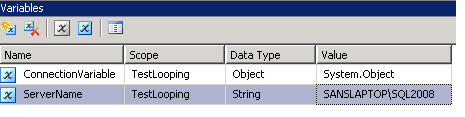
  6. Add 2 variables
  7.     a. Name: ConnectionVariable (A name of your choice)
            Scope: Package
            Type: Object
            Value: System.Object
        b. Name: ServerName  (A name of your choice)
            Scope: Package
            Type: String
            Value: A Valid Server Name

  8. Add an "Execute SQL Task" with SQL Statement like "select FullName from dba..tbl_ListOfServers".
  9. Set the result set to Full Result Set.
  10. On the Result Set page, Add a Result 
  11. Set Result Name "0" and assign it to your Object variable (In our case it is “ConnectionVariable”).
  12. Now add a “Foreach Loop Container” 
  13. Connect it from the “Execute SQL Task”
  14. Inside the “Foreach Loop Container” , add the required “Data Flow Task”
  15. Now Right-Click on the “Foreach Loop Container” and click on “Edit”
  16. Now Go to “Collection” page and Set “Enumerator” to “Foreach ADO Enumerator” and “Enumerator Configuration ” to the Object Variable(In Our Case “ConnectionVariable”) and Set “Enumeration Mode” to “Rows in the First Table”
  17. Now go to the “Variable Mapping” page and Choose the “String Variable” (In our case it is “ServerName”) and set the Index=0
  18. Now, in the “Data Flow Task” add a “OLE DB Source” (Dynamic Connection) and connect it down to a “OLE DB Destination” (which will be your Central Repository).
  19. Now Select the Source Connection Manager (In Our Case it is “Source”) and Right-Click on this Source and choose “Properties”.
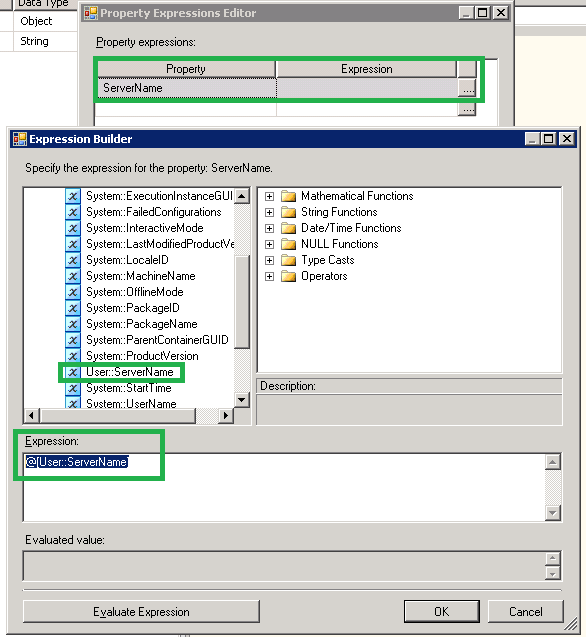
  20. Expand the “Expressions” Option and click on the browse button (…)
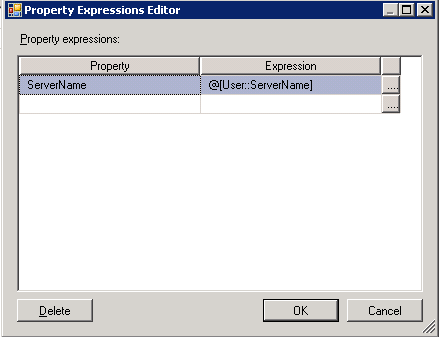
  21. Now in the “Property Expression Editor”, Choose the property “ServerName” and click on browse button (…). Now choose the String Variable (in our case “ServerName”) and Drag and Drop this variable into the “Expression” box and click “OK” and “OK”.


Now when the package runs, the “Execute SQL Task” will read the list of servers and stored in the table you specified and the “Foreach loop” will iterate over each record in that table, running the “Data Flow Task” each time while each time, the ServerName property of the Source Connection in the data flow will get a new value.

This article is also available in pdf format for downloading.
Please Click here to get your copy.

Sunday, August 7, 2011

Finding space usage of database files

DBA's are required to watch the space usage of database files in order to take preventive measures of future failures with respect to database full issues.
This will be usually required when there is a bulk activity happening on a database.
To do this make use of the below stored procedure.
Create this SP in a database and execute it in regular intervals to get the latest status of the database files.
This can be used to view the space usage of all the database files or for a particular threshold value.
Use master
GO
Create proc sp_SpaceUsageReport (@Threshold int=80)
as

CREATE TABLE tempdb..SpaceUsage (
  DatabaseName nvarchar(100)
 ,LogicalFileName nvarchar(500)
 ,FileType nvarchar(10)
 ,PhysicalFileLocation nvarchar(500)
 ,[FileSize (MB)] float
 ,[SpaceUsed (MB)] float
 ,[FreeSpace (MB)] float
 ,[% Used] AS 100-(([FileSize (MB)]-[SpaceUsed (MB)])/[FileSize (MB)])*(100)
 ,[% Free]  AS (([FileSize (MB)]-[SpaceUsed (MB)])/[FileSize (MB)])*(100) )

If (SELECT Convert(varchar(1),(SERVERPROPERTY('ProductVersion')))) = 8
BEGIN
EXEC sp_MSforeachdb 'USE [?];
INSERT INTO tempdb..SpaceUsage(DatabaseName
           ,LogicalFileName
           ,FileType
           ,PhysicalFileLocation   
           ,[FileSize (MB)]
           ,[SpaceUsed (MB)]
           ,[FreeSpace (MB)])
SELECT DB_NAME() AS DatabaseName
       ,name AS LogicalFileName
       ,FileType = CASE WHEN FILEPROPERTY(name,''IsLogFile'')=0 THEN ''Data File'' WHEN FILEPROPERTY(name,''IsLogFile'')=1 THEN ''Log File'' END
       ,filename AS PhysicalFileLocation
       ,CONVERT(float,ROUND(size/128.000,2)) AS [FileSize (MB)]
       ,CONVERT(float,ROUND(FILEPROPERTY(name,''SpaceUsed'')/128.000,2)) AS [SpaceUsed (MB)]
       ,CONVERT(float,ROUND((size-FILEPROPERTY(name,''SpaceUsed''))/128.000,2)) AS [FreeSpace (MB)]
FROM dbo.sysfiles
ORDER BY FileType '
END

If (SELECT Convert(varchar(1),(SERVERPROPERTY('ProductVersion'))))<> 8
BEGIN
EXEC sp_MSforeachdb 'USE [?];
INSERT INTO tempdb..SpaceUsage(DatabaseName
           ,LogicalFileName
           ,FileType
           ,PhysicalFileLocation
           ,[FileSize (MB)]
           ,[SpaceUsed (MB)]
           ,[FreeSpace (MB)])
SELECT DB_NAME() AS DatabaseName
            ,name AS LogicalFileName
            ,FileType = CASE WHEN type_desc =''Rows'' THEN ''Data File'' WHEN type_desc =''LOG'' THEN ''Log File'' END
            ,physical_name AS PhysicalFileLocation
            ,CONVERT(float,ROUND(size/128.000,2)) AS [FileSize (MB)]
            ,CONVERT(float,ROUND(FILEPROPERTY(name,''SpaceUsed'')/128.000,2)) AS [SpaceUsed (MB)]
            ,CONVERT(float,ROUND((size-FILEPROPERTY(name,''SpaceUsed''))/128.000,2)) AS [FreeSpace (MB)]
FROM sys.database_files
ORDER BY FileType'
END

if (Select COUNT(*) from tempdb..SpaceUsage where [% Used]>@Threshold)>0
Begin
/* -- Enable this Content if you want to send email.

DECLARE @table  NVARCHAR(MAX),@Subject Nvarchar(500) ;
Set @Subject='[SQLAlert] Database Files Space Threshold exceeded Report from ' + CAST(@@SERVERNAME as nvarchar)
SET @table =
    N'<H1>Threshold Value for this Report is '+CAST(@Threshold AS nvarchar)+' Percentage. </H1>' +
    N'<table border="1">' +
    N'<tr><th>DatabaseName</th><th>FileType</th><th>PhysicalFileLocation</th><th>FileSize (MB)</th><th>% Used</th></tr> ' +
    CAST ( ( Select td=DatabaseName, '',td=FileType, '',td=PhysicalFileLocation,'',td=CAST([FileSize (MB)] as nvarchar),'',td=CAST([% Used] AS nvarchar) from tempdb..SpaceUsage where [% Used]>@Threshold
              FOR XML PATH('tr'), TYPE
    ) AS NVARCHAR(MAX) )    +
    N'</table>' ;

EXEC msdb.dbo.sp_send_dbmail @profile_name='DatabaseMail', --Change to your Profile Name
      @recipients='sandeshsegu@SansSQL.com', --Put the email address of those who want to receive the e-mail
    @subject = @Subject,
    @body = @table,
    @body_format = 'HTML' ;  
*/   

select * from  tempdb..SpaceUsage where [% Used]>@Threshold                                 
End

DROP TABLE tempdb..SpaceUsage

To send an email of this report you need to
  1. Configure Database Mail option. To configure Database mail option, follow this post.
  2. Uncomment the below content in the SP.
/* -- Enable this Content if you want to send email.

DECLARE @table  NVARCHAR(MAX),@Subject Nvarchar(500) ;
Set @Subject='[SQLAlert] Database Files Space Threshold exceeded Report from ' + CAST(@@SERVERNAME as nvarchar)
SET @table =
    N'<H1>Threshold Value for this Report is '+CAST(@Threshold AS nvarchar)+' Percentage. </H1>' +
    N'<table border="1">' +
    N'<tr><th>DatabaseName</th><th>FileType</th><th>PhysicalFileLocation</th><th>FileSize (MB)</th><th>% Used</th></tr> ' +
    CAST ( ( Select td=DatabaseName, '',td=FileType, '',td=PhysicalFileLocation,'',td=CAST([FileSize (MB)] as nvarchar),'',td=CAST([% Used] AS nvarchar) from tempdb..SpaceUsage where [% Used]>@Threshold
              FOR XML PATH('tr'), TYPE
    ) AS NVARCHAR(MAX) )    +
    N'</table>' ;

EXEC msdb.dbo.sp_send_dbmail @profile_name='DatabaseMail', --Change to your Profile Name
      @recipients='sandeshsegu@SansSQL.com', --Put the email address of those who want to receive the e-mail
    @subject = @Subject,
    @body = @table,
    @body_format = 'HTML' ;  
*/    

Usage of this SP:
This SP expects a parameter called @Threshold
If you specify the @Threshold=0 then, this SP will give space usage details of all the database files.
Exec sp_SpaceUsageReport @Threshold=0

If you specify the @Threshold=80 then, this SP will give space usage details of those database files which exceeds the threshold 80 percent.
Exec sp_SpaceUsageReport @Threshold=80

Ads