SansSQL

Tuesday, February 15, 2011

Error while configuring Change Data Capture (CDC)

I was trying to configure Change Data Capture (CDC) on my system a while ago and I noticed that i did not had a test database on the newly installed Instance. So I backed up the AdventureWorks database from an existing instance on my laptop and restored on the new Instance.
Okay, Now after the restoration, I executed "Exec sys.sp_cdc_enable_db" command to enable CDC on the database but the database did not allow me to enable CDC by giving the below error.

Msg 22830, Level 16, State 1, Procedure sp_cdc_enable_db_internal, Line 186
Could not update the metadata that indicates database CDC_AdventureWorks is enabled for Change Data Capture. The failure occurred when executing the command 'SetCDCTracked(Value = 1)'. The error returned was 15517: 'Cannot execute as the database principal because the principal "dbo" does not exist, this type of principal cannot be impersonated, or you do not have permission.'. Use the action and error to determine the cause of the failure and resubmit the request.
Msg 266, Level 16, State 2, Procedure sp_cdc_enable_db_internal, Line 0
Transaction count after EXECUTE indicates a mismatching number of BEGIN and COMMIT statements. Previous count = 0, current count = 1.
Msg 266, Level 16, State 2, Procedure sp_cdc_enable_db, Line 0
Transaction count after EXECUTE indicates a mismatching number of BEGIN and COMMIT statements. Previous count = 0, current count = 1.
Msg 3998, Level 16, State 1, Line 1
Uncommittable transaction is detected at the end of the batch. The transaction is rolled back.

This is because, the Database Owner was Invalid on the new Instance as the Login that was DBOwner in the other Instance was not present in the new Instance.
SELECT name
        ,database_id
        ,USER_NAME(owner_sid) as DBOwner
FROM sys.databases WHERE name ='CDC_AdventureWorks'

Fix
: To Fix this error, change the owner of the database to 'sa' or a valid Login.

Use CDC_AdventureWorks
GO
Exec sp_changedbowner 'sa'
GO
Once you change the database owner to 'sa' or a valid Login you should be now able to enable CDC on that Database.


Saturday, February 12, 2011

Different ways to find the SQL Server Port Number

We all know that SQL Server by default listens to the port number 1433. But, due to security reasons, the default port number will/can be changed to a different port in order to minimize hacks on SQL Server.

There are many ways using which you can find the port number of the SQL server which it is listening to.
  1. Using the SQL Server Configuration Manager
  2. Using Registry
  3. Using Error Log
  4. etc...
Using SQL Server Configuration Manager:
Click Start >> Run
For SQL Server 2005 Type "SQLServerManager.msc" and click OK
For SQL Server 2008 Type "SQLServerManager10.msc" and click OK

This will Open the SQL Server Configuration Manager for you.
Now in the Left Pane, expand "SQL Server Network Configuration" and click on "Protocols for <InstanceName>"
Now In the right pane, right-click on the "TCP/IP" protocol and go to properties

In the TCP/IP properties, go to the "IPAddresses" Tab and scroll down and locate the section "IPAll"
In the "IPAll" Section, the "TCP Port" represents the Port Number SQL Server is listening to.

Note: <InstanceName> is your SQL Server Instance Name

Using Registry:
To find the SQL Server Port number using registry, execute the below query.
DECLARE @InstanceName nvarchar(50)
DECLARE @value VARCHAR(100)
DECLARE @RegKey_InstanceName nvarchar(500)
DECLARE @RegKey nvarchar(500)

SET @InstanceName=CONVERT(nVARCHAR,isnull(SERVERPROPERTY('INSTANCENAME'),'MSSQLSERVER'))

--For SQL Server 2000
if(SELECT Convert(varchar(1),(SERVERPROPERTY('ProductVersion'))))=8
BEGIN
if @InstanceName='MSSQLSERVER'
Begin
SET @RegKey='SOFTWARE\Microsoft\'+@InstanceName+'\MSSQLServer\SuperSocketNetLib\TCP\'
END
ELSE
BEGIN
SET @RegKey='SOFTWARE\Microsoft\Microsoft SQL Server\'+@InstanceName+'\MSSQLServer\SuperSocketNetLib\TCP\'
END

EXECUTE xp_regread
  @rootkey = 'HKEY_LOCAL_MACHINE',
  @key = @RegKey,
  @value_name = 'TcpPort',
  @value = @value OUTPUT
 
Select @@SERVERNAME as ServerName,@value as PortNumber
END

--For SQL Server 2005 and up
if(SELECT Convert(varchar(1),(SERVERPROPERTY('ProductVersion'))))<>8
BEGIN
SET @RegKey_InstanceName='SOFTWARE\Microsoft\Microsoft SQL Server\Instance Names\SQL'

EXECUTE xp_regread
  @rootkey = 'HKEY_LOCAL_MACHINE',
  @key = @RegKey_InstanceName,
  @value_name = @InstanceName,
  @value = @value OUTPUT

SET @RegKey='SOFTWARE\Microsoft\Microsoft SQL Server\'+@value+'\MSSQLServer\SuperSocketNetLib\TCP\IPAll'

EXECUTE xp_regread
  @rootkey = 'HKEY_LOCAL_MACHINE',
  @key = @RegKey,
  @value_name = 'TcpPort',
  @value = @value OUTPUT
 
Select @@SERVERNAME as ServerName,@value as PortNumber
END

Using Error Log:
To find the SQL Server Port number using error Log, execute the below query.
SET NOCOUNT ON
if(SELECT Convert(varchar(1),(SERVERPROPERTY('ProductVersion'))))=8
BEGIN
Create Table ##ErrorLog_2K
(ErrorLog nvarchar(1000),
ContinuationRow int )

INSERT INTO ##ErrorLog_2K
Exec master..xp_readerrorlog

SELECT DISTINCT @@SERVERNAME as[ServerName] , SUBSTRING(RIGHT(ErrorLog,5),1,4) as [PortNumber]
FROM ##ErrorLog_2K where ErrorLog like '%SQL Server listening on 1%'

DROP TABLE ##ErrorLog_2K
END

if(SELECT Convert(varchar(1),(SERVERPROPERTY('ProductVersion'))))<>8
BEGIN
Create Table ##ErrorLog
(Logdate datetime,
ProcessInfo nvarchar(100),
[Text] nvarchar(1000))

INSERT INTO ##ErrorLog exec master..xp_readerrorlog

SELECT DISTINCT @@SERVERNAME as[ServerName] , SUBSTRING(RIGHT(text,6),1,4) as [PortNumber]
FROM ##ErrorLog where text like 'Server is listening on % ''any'' %'

DROP TABLE ##ErrorLog
END
SET NOCOUNT OFF

You can download the scripts from here.
  1. SansSQL_FindPortNumber_UsingRegistry.sql
  2. SansSQL_FindPortNumber_UsingErrorLog.sql

Saturday, January 22, 2011

Send e-mail notification when a database is not online

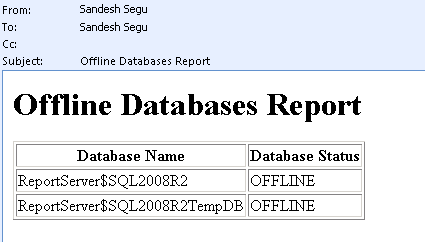
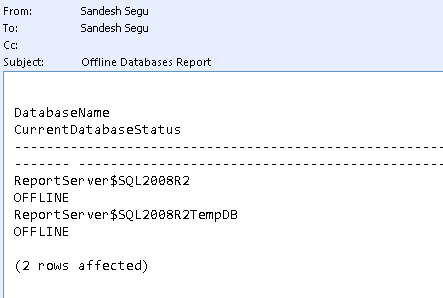
Checking the databases availability is one of the major task of a DBA which has to be performed  at regular intervals to make sure that the critical live databases are always online and fix them immediately if they are not online. This can be done in "n" number of ways and here is one such method.
The method that i am going to discuss below makes use of "Database Mail" option to send e-mails to the intended recipients when the process finds the status of the database which is not online.
If you have still not configured the "Database Mail" Option then Click Here to get the steps to configure "Database Mail" before you continue with this.

After the "Database Mail" Option is configured all you have to do is to create a job with the below code and schedule it to run every five minutes or every one minute depending on the criticality of the databases that you are going to monitor.

Use this Code if you wish to receive the e-mail in HTML format:
if(select count(*) from sys.databases where state_desc<>'Online')>0
Begin

DECLARE @table  NVARCHAR(MAX) ;

SET @table =
    N'<H1>Offline Databases Report</H1>' +
    N'<table border="1">' +
    N'<tr><th>Database Name</th><th>Database Status</th></tr>' +
    CAST ( ( Select td=name, '',td=state_desc from sys.databases where state_desc<>'Online'
              FOR XML PATH('tr'), TYPE
    ) AS NVARCHAR(MAX) )    +
    N'</table>' ;

EXEC msdb.dbo.sp_send_dbmail @profile_name='ProfileName', --Change to your Profile Name
      @recipients='email@domain.com;email1@domain.com', --Put the email address of those who want to receive the e-mail
    @subject = 'Offline Databases Report',
    @body = @table,
    @body_format = 'HTML' ;

END
Else Print 'All Databases are Online'

Click Here to download this Code.


Use this Code if you wish to receive the e-mail in Plain Text format:
if(select count(*) from sys.databases where state_desc<>'Online')>0
Begin

EXEC msdb.dbo.sp_send_dbmail @profile_name='ProfileName', --Change to your Profile Name
      @recipients='email@domain.com;email1@domain.com', --Put the email address of those who want to receive the e-mail
    @subject = 'Offline Databases Report',
    @Query='Select rtrim(ltrim(name)) as DatabaseName,rtrim(ltrim(state_desc)) as CurrentDatabaseStatus from sys.databases where state_desc<>''Online'''
    
END
Else Print 'All Databases are Online'

Click Here to download this Code.

Friday, January 21, 2011

SSRS Error - An Unexpected Error occurred in Report Processing (rsInternalError)

I was working on a SQL Server Reporting Services (SSRS) Report just a few minutes back and i thought my deployment of the report went fine and i can now view my deployed reports on the Report Manager site.
Assuming that everything went fine, I opened the Report Manager and there was a surprise awaiting for me.
And the surprise was, the Report Manager which was working fine till yesterday is now giving an error.
The error is:
An Unexpected Error occurred in Report Processing (rsInternalError)
Could not find a part of the path 'C:\Documents and Settings\SANSLAPTOP\ASPNET.SANSLAPTOP.000\Local Settings\Temp\brhx7gi1.tmp


Fix that worked for me
:
I manually went into each folder structure that is displayed as part of the error message and found that in my case, the folder "Temp"  was missing in the file system.
I created this folder and went back to my report manager and refreshed the page and the report manager started to work as before.

Configuring Database Mail

Database Mail in SQL Server 2005 and up is the replacement of the SQL Mail that existed in SQL Server 2000. Database Mail is more enhanced than SQL mail and does not require a MAPI mail client like outlook or outlook express installed on the system for it to work.

Here is the procedure to setup or configure the Database mail.
  1. Enable Database Mail XPs
    EXEC SP_CONFIGURE 'show advanced options',1
    GO
    RECONFIGURE

    EXEC SP_CONFIGURE 'Database Mail XPs',1
    GO
    RECONFIGURE
  2. Expand the "Management" Folder under your server. Right-Click on the "Database Mail" and Choose "Configure Database Mail"
  3. This will open up the Database Mail Configuration Wizard.
    Now in the welcome page, click "Next" and in the "Select Configuration Task" Page choose the option "Setup Database Mail by performing the following tasks" and click "Next"
  4. Now in the next page "New Profile" the wizard gives you the option to create your mail profile and Add accounts to this profile. Fill in the Mail profile details and click on "Add" button to add the Mail accounts.
  5. In the "New Database Mail Account" page, fill in the Account Name, Description, Email Address, Display Name, Reply e-mail, Exchange Server Name and its Port Number. By default the port number will be 25. If it is different for your exchange server, then you have to mention that port number here.
    Then Specify the SMTP Authentication and click "OK"
  6. Click "Next" in the resulting Page
  7. In the "Manage Profile Security" page, select the appropriate security for your profile.
    Profiles are either Public or Private. A Private Profile is accessible only to specific Users or Roles. A Public Profile allows any Users or Roles with access to msdb database to send e-mail using that profile.


  8. In the next Screen, you can configure the System Properties.
  9. After configuring the System Parameters, click "Next". In the Summary Page, the wizard will display what actions will be performed. If you are satisfied then click "Finish" else Click "Back" button and do the changes as required.
     

  10. Now Send a Test E-mail. Right-Click on "Database Mail" and Choose "Send Test E-Mail..."
    Now in the resulting Screen, select the "Mail Profile", enter the "To" E-Mail Address, Subject and Body and then Click on "Send Test E-Mail".


    You can also send e-mail by using the SP sp_send_dbmail which will be present in the msdb database.
    Exec msdb..sp_send_dbmail
          @profile_name='DBA'
          ,@recipients='segu.sandesh@gmail.com'
          ,@Subject='Test Email'
          ,@Body='Test Email from my Laptop'
       

This article is also available in pdf format for downloading.
Please Click here to get your copy.

Ads