SansSQL

Sunday, August 14, 2011

Looping through SQL Servers using SSIS or Dynamically build connection to multiple SQL Servers

Consider you are giver a task of gathering information from multiple servers. What are the different ways you can automate this?
  1. Create linked servers in each server pointing to your central repository
  2. Create Separate SSIS package in each servers which loads data to your central repository
  3. Create one SSIS package with multiple data sources and duplicate the tasks for each data source.
  4. Create one SSIS package which dynamically builds connection to each server and does the data loading tasks.
If you choose an option between 1 and 3 , then  you will have to do some extra work for gathering the server information when there are new servers added to your environment.
If you choose the 4th option then also you will have some extra work but it is very small and easy when compared to the first 3 options. Here you need to just add the new Server Names to the table and that is all and everything else will be taken care by the SSIS package.
In this post I am going to explain how to create a SSIS package which loops through multiple SQL server and gathers information  by building the connection to those servers dynamically.
  1. Open “Microsoft Visual Studio”
  2. Create a new “Integration Services Project”
  3. Create a SSIS Package
  4. Create 2 Connection Managers, 1 for the source (which will be set dynamically for each iteration of the loop)  and the other for destination (which will remain constant, in other terms your Central Repository)
  5. Store All your Server Names in a table preferably in the Central Repository (Destination Connection)
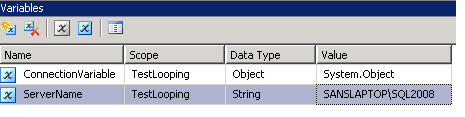
  6. Add 2 variables
  7.     a. Name: ConnectionVariable (A name of your choice)
            Scope: Package
            Type: Object
            Value: System.Object
        b. Name: ServerName  (A name of your choice)
            Scope: Package
            Type: String
            Value: A Valid Server Name

  8. Add an "Execute SQL Task" with SQL Statement like "select FullName from dba..tbl_ListOfServers".
  9. Set the result set to Full Result Set.
  10. On the Result Set page, Add a Result 
  11. Set Result Name "0" and assign it to your Object variable (In our case it is “ConnectionVariable”).
  12. Now add a “Foreach Loop Container” 
  13. Connect it from the “Execute SQL Task”
  14. Inside the “Foreach Loop Container” , add the required “Data Flow Task”
  15. Now Right-Click on the “Foreach Loop Container” and click on “Edit”
  16. Now Go to “Collection” page and Set “Enumerator” to “Foreach ADO Enumerator” and “Enumerator Configuration ” to the Object Variable(In Our Case “ConnectionVariable”) and Set “Enumeration Mode” to “Rows in the First Table”
  17. Now go to the “Variable Mapping” page and Choose the “String Variable” (In our case it is “ServerName”) and set the Index=0
  18. Now, in the “Data Flow Task” add a “OLE DB Source” (Dynamic Connection) and connect it down to a “OLE DB Destination” (which will be your Central Repository).
  19. Now Select the Source Connection Manager (In Our Case it is “Source”) and Right-Click on this Source and choose “Properties”.
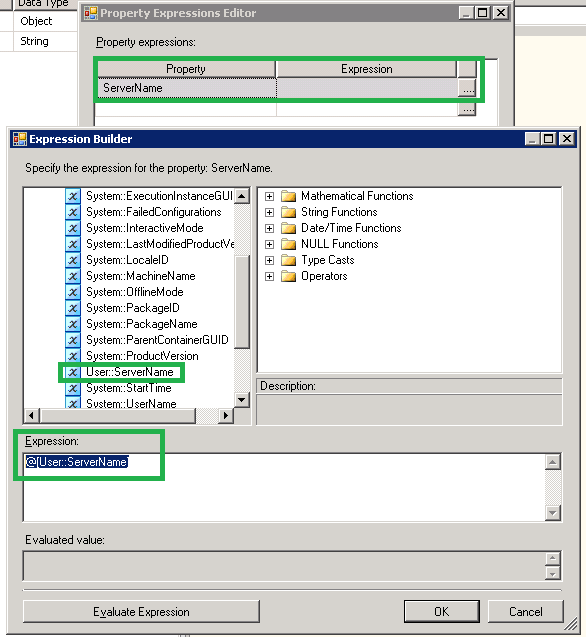
  20. Expand the “Expressions” Option and click on the browse button (…)
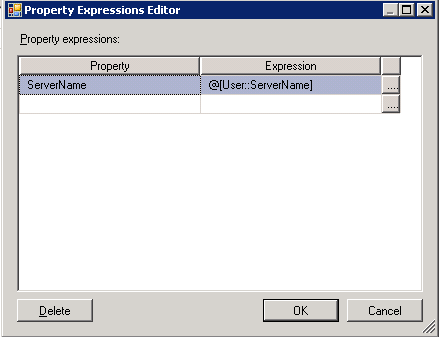
  21. Now in the “Property Expression Editor”, Choose the property “ServerName” and click on browse button (…). Now choose the String Variable (in our case “ServerName”) and Drag and Drop this variable into the “Expression” box and click “OK” and “OK”.


Now when the package runs, the “Execute SQL Task” will read the list of servers and stored in the table you specified and the “Foreach loop” will iterate over each record in that table, running the “Data Flow Task” each time while each time, the ServerName property of the Source Connection in the data flow will get a new value.

This article is also available in pdf format for downloading.
Please Click here to get your copy.

Sunday, August 7, 2011

Finding space usage of database files

DBA's are required to watch the space usage of database files in order to take preventive measures of future failures with respect to database full issues.
This will be usually required when there is a bulk activity happening on a database.
To do this make use of the below stored procedure.
Create this SP in a database and execute it in regular intervals to get the latest status of the database files.
This can be used to view the space usage of all the database files or for a particular threshold value.
Use master
GO
Create proc sp_SpaceUsageReport (@Threshold int=80)
as

CREATE TABLE tempdb..SpaceUsage (
  DatabaseName nvarchar(100)
 ,LogicalFileName nvarchar(500)
 ,FileType nvarchar(10)
 ,PhysicalFileLocation nvarchar(500)
 ,[FileSize (MB)] float
 ,[SpaceUsed (MB)] float
 ,[FreeSpace (MB)] float
 ,[% Used] AS 100-(([FileSize (MB)]-[SpaceUsed (MB)])/[FileSize (MB)])*(100)
 ,[% Free]  AS (([FileSize (MB)]-[SpaceUsed (MB)])/[FileSize (MB)])*(100) )

If (SELECT Convert(varchar(1),(SERVERPROPERTY('ProductVersion')))) = 8
BEGIN
EXEC sp_MSforeachdb 'USE [?];
INSERT INTO tempdb..SpaceUsage(DatabaseName
           ,LogicalFileName
           ,FileType
           ,PhysicalFileLocation   
           ,[FileSize (MB)]
           ,[SpaceUsed (MB)]
           ,[FreeSpace (MB)])
SELECT DB_NAME() AS DatabaseName
       ,name AS LogicalFileName
       ,FileType = CASE WHEN FILEPROPERTY(name,''IsLogFile'')=0 THEN ''Data File'' WHEN FILEPROPERTY(name,''IsLogFile'')=1 THEN ''Log File'' END
       ,filename AS PhysicalFileLocation
       ,CONVERT(float,ROUND(size/128.000,2)) AS [FileSize (MB)]
       ,CONVERT(float,ROUND(FILEPROPERTY(name,''SpaceUsed'')/128.000,2)) AS [SpaceUsed (MB)]
       ,CONVERT(float,ROUND((size-FILEPROPERTY(name,''SpaceUsed''))/128.000,2)) AS [FreeSpace (MB)]
FROM dbo.sysfiles
ORDER BY FileType '
END

If (SELECT Convert(varchar(1),(SERVERPROPERTY('ProductVersion'))))<> 8
BEGIN
EXEC sp_MSforeachdb 'USE [?];
INSERT INTO tempdb..SpaceUsage(DatabaseName
           ,LogicalFileName
           ,FileType
           ,PhysicalFileLocation
           ,[FileSize (MB)]
           ,[SpaceUsed (MB)]
           ,[FreeSpace (MB)])
SELECT DB_NAME() AS DatabaseName
            ,name AS LogicalFileName
            ,FileType = CASE WHEN type_desc =''Rows'' THEN ''Data File'' WHEN type_desc =''LOG'' THEN ''Log File'' END
            ,physical_name AS PhysicalFileLocation
            ,CONVERT(float,ROUND(size/128.000,2)) AS [FileSize (MB)]
            ,CONVERT(float,ROUND(FILEPROPERTY(name,''SpaceUsed'')/128.000,2)) AS [SpaceUsed (MB)]
            ,CONVERT(float,ROUND((size-FILEPROPERTY(name,''SpaceUsed''))/128.000,2)) AS [FreeSpace (MB)]
FROM sys.database_files
ORDER BY FileType'
END

if (Select COUNT(*) from tempdb..SpaceUsage where [% Used]>@Threshold)>0
Begin
/* -- Enable this Content if you want to send email.

DECLARE @table  NVARCHAR(MAX),@Subject Nvarchar(500) ;
Set @Subject='[SQLAlert] Database Files Space Threshold exceeded Report from ' + CAST(@@SERVERNAME as nvarchar)
SET @table =
    N'<H1>Threshold Value for this Report is '+CAST(@Threshold AS nvarchar)+' Percentage. </H1>' +
    N'<table border="1">' +
    N'<tr><th>DatabaseName</th><th>FileType</th><th>PhysicalFileLocation</th><th>FileSize (MB)</th><th>% Used</th></tr> ' +
    CAST ( ( Select td=DatabaseName, '',td=FileType, '',td=PhysicalFileLocation,'',td=CAST([FileSize (MB)] as nvarchar),'',td=CAST([% Used] AS nvarchar) from tempdb..SpaceUsage where [% Used]>@Threshold
              FOR XML PATH('tr'), TYPE
    ) AS NVARCHAR(MAX) )    +
    N'</table>' ;

EXEC msdb.dbo.sp_send_dbmail @profile_name='DatabaseMail', --Change to your Profile Name
      @recipients='sandeshsegu@SansSQL.com', --Put the email address of those who want to receive the e-mail
    @subject = @Subject,
    @body = @table,
    @body_format = 'HTML' ;  
*/   

select * from  tempdb..SpaceUsage where [% Used]>@Threshold                                 
End

DROP TABLE tempdb..SpaceUsage

To send an email of this report you need to
  1. Configure Database Mail option. To configure Database mail option, follow this post.
  2. Uncomment the below content in the SP.
/* -- Enable this Content if you want to send email.

DECLARE @table  NVARCHAR(MAX),@Subject Nvarchar(500) ;
Set @Subject='[SQLAlert] Database Files Space Threshold exceeded Report from ' + CAST(@@SERVERNAME as nvarchar)
SET @table =
    N'<H1>Threshold Value for this Report is '+CAST(@Threshold AS nvarchar)+' Percentage. </H1>' +
    N'<table border="1">' +
    N'<tr><th>DatabaseName</th><th>FileType</th><th>PhysicalFileLocation</th><th>FileSize (MB)</th><th>% Used</th></tr> ' +
    CAST ( ( Select td=DatabaseName, '',td=FileType, '',td=PhysicalFileLocation,'',td=CAST([FileSize (MB)] as nvarchar),'',td=CAST([% Used] AS nvarchar) from tempdb..SpaceUsage where [% Used]>@Threshold
              FOR XML PATH('tr'), TYPE
    ) AS NVARCHAR(MAX) )    +
    N'</table>' ;

EXEC msdb.dbo.sp_send_dbmail @profile_name='DatabaseMail', --Change to your Profile Name
      @recipients='sandeshsegu@SansSQL.com', --Put the email address of those who want to receive the e-mail
    @subject = @Subject,
    @body = @table,
    @body_format = 'HTML' ;  
*/    

Usage of this SP:
This SP expects a parameter called @Threshold
If you specify the @Threshold=0 then, this SP will give space usage details of all the database files.
Exec sp_SpaceUsageReport @Threshold=0

If you specify the @Threshold=80 then, this SP will give space usage details of those database files which exceeds the threshold 80 percent.
Exec sp_SpaceUsageReport @Threshold=80

Sunday, July 24, 2011

T-SQL Query to find the list of Indexed Views in a Database

Here is the query which can be used for getting the list of Indexed views in a Database.
USE <DatabaseName>
GO
SELECT * FROM sys.objects
WHERE type='V'
and OBJECTPROPERTY(object_id,'IsIndexed')=1

Thursday, June 9, 2011

SQL Server Migration Checklist

Are you migrating your SQL Servers?
Here is a quick checklist for your SQL Server Migration.
  1. Build your New Server, Install SQL Server and required updates and keep the server ready for migration
  2. Stop Application Service(s).
    This is to ensure that the no applications are connected to the Databases during the migration process.
  3. Change the Properties of the databases that are part of Migration to "Read-only".
    This is to ensure that the data modification is not happening by any other sources.
  4.  Take a FULL backup of all the User databases that are involved in the Migration Process. 
  5. Move the backups to the destination server or a Shared location, then restore them to the appropriate drives on the destination.
  6. Change the compatibility level of the databases (Optional)
    Do this if the applications connecting to these databases are independent of the database compatibility level.
  7. Transfer logins using SSIS (Transfer Logins Task) or using "sp_help_revlogin"
    More information about sp_help_revlogin is at http://support.microsoft.com/kb/246133
  8. Check for Orphaned Users in the databases and Fix them (if Any)
  9. Update Usage on the migrated Databases
  10. Update Stats on the migrated Databases
  11. Re-Index or Re-Organize Indexes on the migrated Databases
  12. Transfer Jobs using SSIS or manually create them
  13. Build Maintenance plans (if Any)
  14. Recompile database objects if required
  15. Move or rebuild SSIS or DTS packages (if Any)
  16. Create Alerts and Operators (if Any)
  17. Setup High Availability Options (if Any Like Replication, LogShipping, Mirroring)
  18. Test the High Availability options that were setup in the previous step
  19. Point the Application(s) to new Server and start the Application Service(s)
  20. Test the Application(s)

Tuesday, June 7, 2011

SQL Server 2008 Service fails to start after Service Pack Installation

Some times you may find that the SQL Server Service is not starting after applying a service pack and when you check in the Event Viewer you find the below message.

Script level upgrade for database 'master' failed because upgrade step 'sqlagent100_msdb_upgrade.sql' encountered error 598, state 1, severity 25. This is a serious error condition which might interfere with regular operation and the database will be taken offline. If the error happened during upgrade of the 'master' database, it will prevent the entire SQL Server instance from starting. Examine the previous errorlog entries for errors, take the appropriate corrective actions and re-start the database so that the script upgrade steps run to completion.

SQL Server Setup creates a database with the data file name temp_MS_AgentSigningCertificate_Database.mdf during the installation process and if the SQL Server setup is not able to create that database in the default data path then the above error is returned as it is not able to find the path.

To fix this issue.
  1. Go to Registry editor, To open this, go to "Run" and type "regedit" and click "ok"
  2. First go to this path and make sure that the path in the key SQLDataRoot exists. If not then give a valid path to this key.
    HKEY_LOCAL_MACHINE\SOFTWARE\Microsoft\Microsoft SQL Server\MSSQL10.<instance name>\Setup
  3. Then go to this path and make sure that the path in the keys "BackupDirectory", "DefaultData" and "DefaultLog" exists. If not then give a valid path to these keys.
    HKEY_LOCAL_MACHINE\SOFTWARE\Microsoft\Microsoft SQL Server\MSSQL10.<instance name>\MSSQLServer
  4. Now you should be able to start the SQL Server Service without any issues.
Once the Service is started, verify the SQL Server, databases and others to make sure everything is fine.
Also verify if the Service pack or the CU is installed correctly.

Ads