SansSQL

Tuesday, June 7, 2011

SQL Server 2008 Service fails to start after Service Pack Installation

Some times you may find that the SQL Server Service is not starting after applying a service pack and when you check in the Event Viewer you find the below message.

Script level upgrade for database 'master' failed because upgrade step 'sqlagent100_msdb_upgrade.sql' encountered error 598, state 1, severity 25. This is a serious error condition which might interfere with regular operation and the database will be taken offline. If the error happened during upgrade of the 'master' database, it will prevent the entire SQL Server instance from starting. Examine the previous errorlog entries for errors, take the appropriate corrective actions and re-start the database so that the script upgrade steps run to completion.

SQL Server Setup creates a database with the data file name temp_MS_AgentSigningCertificate_Database.mdf during the installation process and if the SQL Server setup is not able to create that database in the default data path then the above error is returned as it is not able to find the path.

To fix this issue.
  1. Go to Registry editor, To open this, go to "Run" and type "regedit" and click "ok"
  2. First go to this path and make sure that the path in the key SQLDataRoot exists. If not then give a valid path to this key.
    HKEY_LOCAL_MACHINE\SOFTWARE\Microsoft\Microsoft SQL Server\MSSQL10.<instance name>\Setup
  3. Then go to this path and make sure that the path in the keys "BackupDirectory", "DefaultData" and "DefaultLog" exists. If not then give a valid path to these keys.
    HKEY_LOCAL_MACHINE\SOFTWARE\Microsoft\Microsoft SQL Server\MSSQL10.<instance name>\MSSQLServer
  4. Now you should be able to start the SQL Server Service without any issues.
Once the Service is started, verify the SQL Server, databases and others to make sure everything is fine.
Also verify if the Service pack or the CU is installed correctly.
Wednesday, June 1, 2011

Unable to start mail session (reason: No mail profile defined) - Message in Error Log

There will be many different messages that will be logged in the Error Log of SQL Server. Among them you might also find the below message some times.
Date 6/1/2011 8:18:27 AM
Log SQL Server Agent (Archive #2 - 6/1/2011 8:18:00 AM)

Message
[098] SQLServerAgent terminated (normally)
This is the most common message that will be logged when there is no "Mail Session" defined for the SQL Server Agent Alert System.

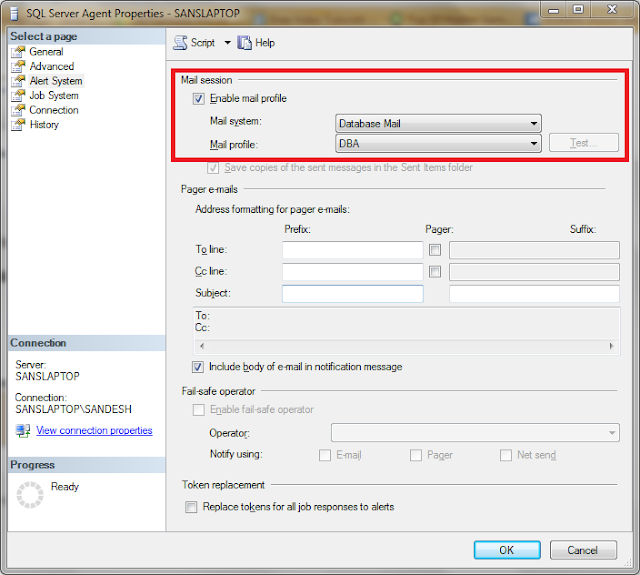
To Fix this or to make this message disappear in the Error Log, you have to enable "Mail Session" and re-start the SQL Server Agent.
To Do this,
  1. Connect to the Server
  2. Right Click on the "SQL Server Agent" and go to "Properties"  
  3. Then Go to "Alert System" Tab
  4. Make sure the check box "Enable Mail Profile" is checked 
  5. Click OK to exit
  6. Re-start the SQL Server Agent Service


Now if you again look into the Error Log you will not find this message anymore after re-starting the Agent Service.  

Tuesday, April 19, 2011

SQL Server 2011 - Zoom Query Window and Results pane - New Feature

SQL Server 2011 comes with lots of new features and here is one such new feature.
SQL Server 2011 has introduced zooming of Query window and results pane.
Query Window - Normal

Query Window - Zoomed

Results Pane - Normal

Results Pane - Zoomed

Thursday, April 7, 2011

T-SQL Query to find the SQL Server Protocols Status

Here is a T-SQL Query that I have developed to get the status of the SQL Server Protocols.
This query reads data from the registry.
DECLARE @InstanceName nvarchar(50)
DECLARE @value VARCHAR(100)
DECLARE @value_Out VARCHAR(100)
DECLARE @RegKey_InstanceName nvarchar(500)
DECLARE @RegKey nvarchar(500)

SET @InstanceName=CONVERT(nVARCHAR,isnull(SERVERPROPERTY('INSTANCENAME'),
'MSSQLSERVER'))

CREATE TABLE #SQLServerProtocols
(ProtocolName nvarchar(25),
Value nvarchar(10),
Data bit)

if(SELECT Convert(varchar(1),(SERVERPROPERTY('ProductVersion'))))<>8
BEGIN
SET @RegKey_InstanceName='SOFTWARE\Microsoft\Microsoft SQL Server\Instance Names\SQL'

EXECUTE xp_regread
  @rootkey = 'HKEY_LOCAL_MACHINE',
  @key = @RegKey_InstanceName,
  @value_name = @InstanceName,
  @value = @value OUTPUT

SET @RegKey='SOFTWARE\Microsoft\Microsoft SQL Server\'+@value+'\MSSQLServer\SuperSocketNetLib\Sm'
Insert into #SQLServerProtocols (Value,Data)
EXECUTE xp_regread
  @rootkey = 'HKEY_LOCAL_MACHINE',
  @key = @RegKey,
  @value_name = 'Enabled'
EXECUTE xp_regread
  @rootkey = 'HKEY_LOCAL_MACHINE',
  @key = @RegKey,
  @value_name = 'DisplayName',
  @value = @value_Out OUTPUT
UPDATE #SQLServerProtocols set ProtocolName=@value_Out 
where ProtocolName is null


SET @RegKey='SOFTWARE\Microsoft\Microsoft SQL Server\'+@value+'\MSSQLServer\SuperSocketNetLib\Np'
Insert into #SQLServerProtocols (Value,Data)
EXECUTE xp_regread
  @rootkey = 'HKEY_LOCAL_MACHINE',
  @key = @RegKey,
  @value_name = 'Enabled'
EXECUTE xp_regread
  @rootkey = 'HKEY_LOCAL_MACHINE',
  @key = @RegKey,
  @value_name = 'DisplayName',
  @value = @value_Out OUTPUT
UPDATE #SQLServerProtocols set ProtocolName=@value_Out
where ProtocolName is null

SET @RegKey='SOFTWARE\Microsoft\Microsoft SQL Server\'+@value+'\MSSQLServer\SuperSocketNetLib\TCP'
Insert into #SQLServerProtocols (Value,Data)
EXECUTE xp_regread
  @rootkey = 'HKEY_LOCAL_MACHINE',
  @key = @RegKey,
  @value_name = 'Enabled'
EXECUTE xp_regread
  @rootkey = 'HKEY_LOCAL_MACHINE',
  @key = @RegKey,
  @value_name = 'DisplayName',
  @value = @value_Out OUTPUT
UPDATE #SQLServerProtocols set ProtocolName=@value_Out 
where ProtocolName is null

SET @RegKey='SOFTWARE\Microsoft\Microsoft SQL Server\'+@value+'\MSSQLServer\SuperSocketNetLib\Via'
Insert into #SQLServerProtocols (Value,Data)
EXECUTE xp_regread
  @rootkey = 'HKEY_LOCAL_MACHINE',
  @key = @RegKey,
  @value_name = 'Enabled'
EXECUTE xp_regread
  @rootkey = 'HKEY_LOCAL_MACHINE',
  @key = @RegKey,
  @value_name = 'DisplayName',
  @value = @value_Out OUTPUT
UPDATE #SQLServerProtocols set ProtocolName=@value_Out 
where ProtocolName is null
END

SELECT ProtocolName, IsEnabled=CASE WHEN Data=1 THEN 'Enabled' 
ELSE 'Disabled' END FROM #SQLServerProtocols

DROP TABLE #SQLServerProtocols

Download this script from here.

Saturday, March 26, 2011

Page Level Restoration

Sometimes you might come across a situation where a particular Page of a SQL Server database gets corrupted due to various reasons. In such cases only that corrupted page can be recovered using a backup.
To explain how to recover a page from the backup, I will first need to corrupt a page on a database.
By using the below method I am going to simulate the page corruption and then recover using the backup taken before corruption.
First I am going to create a database by name "TestPageLevelRestore" and Set its recovery Model to FULL.
USE master;
GO
CREATE DATABASE TestPageLevelRestore
ON
( NAME = TestPageLevelRestore,
    FILENAME = 'D:\TestPageLevelRestore.mdf',
    SIZE = 10)
LOG ON
( NAME = TestPageLevelRestore_log,
    FILENAME = 'D:\TestPageLevelRestore_log.ldf',
    SIZE = 5MB) ;
GO
Print 'Database TestPageLevelRestore Created'
ALTER DATABASE TestPageLevelRestore SET RECOVERY FULL
Print 'Recovery Model of database TestPageLevelRestore has been changed to FULL'


Now Create a table and insert data into that table.
Use TestPageLevelRestore
GO
CREATE TABLE [Shift](
      [ShiftID] tinyint IDENTITY(1,1) NOT NULL,
      [Name] nvarchar(50) NOT NULL,
      [StartTime] datetime NOT NULL,
      [EndTime] datetime NOT NULL,
      [ModifiedDate] datetime NOT NULL,
 CONSTRAINT [PK_Shift_ShiftID] PRIMARY KEY CLUSTERED ([ShiftID] ASC)
)
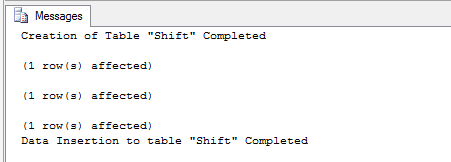
Print 'Creation of Table "Shift" Completed'

SET IDENTITY_INSERT [Shift] ON
INSERT [Shift] ([ShiftID], [Name], [StartTime], [EndTime], [ModifiedDate]) VALUES (1, N'Day', '1900-01-01 07:00:00.000', '1900-01-01 15:00:00.000', '1998-06-01 00:00:00.000')
INSERT [Shift] ([ShiftID], [Name], [StartTime], [EndTime], [ModifiedDate]) VALUES (2, N'Evening', '1900-01-01 15:00:00.000', '1900-01-01 23:00:00.000', '1998-06-01 00:00:00.000')
INSERT [Shift] ([ShiftID], [Name], [StartTime], [EndTime], [ModifiedDate]) VALUES (3, N'Night', '1900-01-01 23:00:00.000', '1900-01-01 07:00:00.000', '1998-06-01 00:00:00.000')
SET IDENTITY_INSERT [Shift] OFF

Print 'Data Insertion to table "Shift" Completed'


Now take a FULL backup of the database
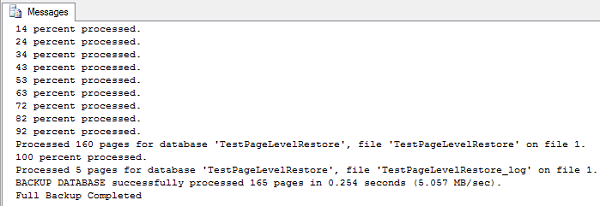
BACKUP DATABASE TestPageLevelRestore TO DISK='D:\TestPageLevelRestore_FullBackup.bak' WITH STATS=10
Print 'Full Backup Completed'


After the backup is completed, get the list of index ID's from which you can choose one to corrupt
--To get the list of index ID's from which you can choose one to corrupt
Use TestPageLevelRestore
Select * from sys.indexes where OBJECT_NAME(object_id)='Shift'


Now get the list of pages in that index.
--To get the list of pages
DBCC IND ('TestPageLevelRestore', 'Shift',1)


Now you can get the page level details using the below query
-- To display the contents
DBCC TRACEON (3604);
GO
--TO get the page level data details
DBCC PAGE('TestPageLevelRestore',1,147,3);


For corrupting a particular page using a hex editor, you need to get the offset value, to obtain the offset value of a page simply multiply the PageID with 8192
--Get the Offset Value. This can be obtained by multiplying the page ID with 8192.
--Once you get the result copy the result and set the database to offline
SELECT 147*8192 AS [OffSetValue]


Once you get the offset Value, just copy it and take the database Offline.
USE MASTER
ALTER DATABASE TestPageLevelRestore SET OFFLINE
Print 'Database TestPageLevelRestore is set to Offline. Now Open the TestPageLevelRestore.mdf file in the hex editor and press ctrl+g to go the page where the index data is located.
Choose Decimal and paste the offset value.
once you go to the location, then manuplate the value and save the file and exit hex editor.
After manuplating data bring database online.'


Now Open the data file of the database "TestPageLevelRestore.mdf" file in the hex editor and press ctrl+g to go the page where the index data is located.

Then choose Decimal option and paste the offset value.
Once you go to the location, then manuplate the value and save the file and exit hex editor.


You can now see that I have edited the page and saved the file.

Once you edit the file and saved it, exit the Hex Editor and bring back the database to Online state.
USE MASTER
ALTER DATABASE TestPageLevelRestore SET ONLINE
Print 'Database TestPageLevelRestore is set to Online'


Now try to read data from the table and you will get error which states that the read failed at page (x:xxxx)
--Select the data and you will get error stating that the read failed at page (x:xxxx)
USE TestPageLevelRestore
Select * from shift
select * from sys.master_files where DB_NAME(database_id)='TestPageLevelRestore'


So this means that the page is now corrupted. By this the simulation of page corruption is completed.
Now we need to start looking on how to recover the page using page level restore.
Before we start the recovery process, we need to backup the tail of the log.
USE master
BACKUP LOG TestPageLevelRestore TO DISK = 'D:\TestPageLevelRestore_log.bak' WITH INIT, NORECOVERY;
GO

After backing up the tail log, restore the corrupted page using the below command.
Restore DATABASE TestPageLevelRestore Page='1:147' FROM DISK='D:\TestPageLevelRestore_FullBackup.bak'


After the page restoration is completed, Restore the tail log backup.
RESTORE LOG TestPageLevelRestore FROM DISK = 'D:\TestPageLevelRestore_log.bak';
GO


Now you have restored the corrupted page from a good backup and this can be verified by selecting the data from the table and you will be able to retrieve the data.
USE TestPageLevelRestore
Select * from shift


The complete demo script that I have used in this post can be downloaded from here.

Ads