DBA's are required to watch the space usage of database files in order to take preventive measures of future failures with respect to database full issues.
This will be usually required when there is a bulk activity happening on a database.
To do this make use of the below stored procedure.
Create this SP in a database and execute it in regular intervals to get the latest status of the database files.
This can be used to view the space usage of all the database files or for a particular threshold value.
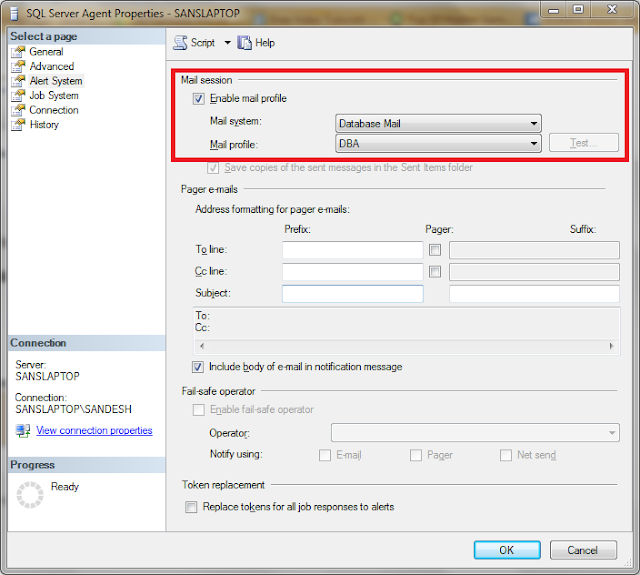
To send an email of this report you need to
Usage of this SP:
This SP expects a parameter called @Threshold
If you specify the @Threshold=0 then, this SP will give space usage details of all the database files.
If you specify the @Threshold=80 then, this SP will give space usage details of those database files which exceeds the threshold 80 percent.
This will be usually required when there is a bulk activity happening on a database.
To do this make use of the below stored procedure.
Create this SP in a database and execute it in regular intervals to get the latest status of the database files.
This can be used to view the space usage of all the database files or for a particular threshold value.
Use master
GO
Create proc sp_SpaceUsageReport (@Threshold int=80)
as
CREATE TABLE tempdb..SpaceUsage (
DatabaseName nvarchar(100)
,LogicalFileName nvarchar(500)
,FileType nvarchar(10)
,PhysicalFileLocation nvarchar(500)
,[FileSize (MB)] float
,[SpaceUsed (MB)] float
,[FreeSpace (MB)] float
,[% Used] AS 100-(([FileSize (MB)]-[SpaceUsed (MB)])/[FileSize (MB)])*(100)
,[% Free] AS (([FileSize (MB)]-[SpaceUsed (MB)])/[FileSize (MB)])*(100) )
If (SELECT Convert(varchar(1),(SERVERPROPERTY('ProductVersion')))) = 8
BEGIN
EXEC sp_MSforeachdb 'USE [?];
INSERT INTO tempdb..SpaceUsage(DatabaseName
,LogicalFileName
,FileType
,PhysicalFileLocation
,[FileSize (MB)]
,[SpaceUsed (MB)]
,[FreeSpace (MB)])
SELECT DB_NAME() AS DatabaseName
,name AS LogicalFileName
,FileType = CASE WHEN FILEPROPERTY(name,''IsLogFile'')=0 THEN ''Data File'' WHEN FILEPROPERTY(name,''IsLogFile'')=1 THEN ''Log File'' END
,filename AS PhysicalFileLocation
,CONVERT(float,ROUND(size/128.000,2)) AS [FileSize (MB)]
,CONVERT(float,ROUND(FILEPROPERTY(name,''SpaceUsed'')/128.000,2)) AS [SpaceUsed (MB)]
,CONVERT(float,ROUND((size-FILEPROPERTY(name,''SpaceUsed''))/128.000,2)) AS [FreeSpace (MB)]
FROM dbo.sysfiles
ORDER BY FileType '
END
If (SELECT Convert(varchar(1),(SERVERPROPERTY('ProductVersion'))))<> 8
BEGIN
EXEC sp_MSforeachdb 'USE [?];
INSERT INTO tempdb..SpaceUsage(DatabaseName
,LogicalFileName
,FileType
,PhysicalFileLocation
,[FileSize (MB)]
,[SpaceUsed (MB)]
,[FreeSpace (MB)])
SELECT DB_NAME() AS DatabaseName
,name AS LogicalFileName
,FileType = CASE WHEN type_desc =''Rows'' THEN ''Data File'' WHEN type_desc =''LOG'' THEN ''Log File'' END
,physical_name AS PhysicalFileLocation
,CONVERT(float,ROUND(size/128.000,2)) AS [FileSize (MB)]
,CONVERT(float,ROUND(FILEPROPERTY(name,''SpaceUsed'')/128.000,2)) AS [SpaceUsed (MB)]
,CONVERT(float,ROUND((size-FILEPROPERTY(name,''SpaceUsed''))/128.000,2)) AS [FreeSpace (MB)]
FROM sys.database_files
ORDER BY FileType'
END
if (Select COUNT(*) from tempdb..SpaceUsage where [% Used]>@Threshold)>0
Begin
/* -- Enable this Content if you want to send email.
DECLARE @table NVARCHAR(MAX),@Subject Nvarchar(500) ;
Set @Subject='[SQLAlert] Database Files Space Threshold exceeded Report from ' + CAST(@@SERVERNAME as nvarchar)
SET @table =
N'<H1>Threshold Value for this Report is '+CAST(@Threshold AS nvarchar)+' Percentage. </H1>' +
N'<table border="1">' +
N'<tr><th>DatabaseName</th><th>FileType</th><th>PhysicalFileLocation</th><th>FileSize (MB)</th><th>% Used</th></tr> ' +
CAST ( ( Select td=DatabaseName, '',td=FileType, '',td=PhysicalFileLocation,'',td=CAST([FileSize (MB)] as nvarchar),'',td=CAST([% Used] AS nvarchar) from tempdb..SpaceUsage where [% Used]>@Threshold
FOR XML PATH('tr'), TYPE
) AS NVARCHAR(MAX) ) +
N'</table>' ;
EXEC msdb.dbo.sp_send_dbmail @profile_name='DatabaseMail', --Change to your Profile Name
@recipients='sandeshsegu@SansSQL.com', --Put the email address of those who want to receive the e-mail
@subject = @Subject,
@body = @table,
@body_format = 'HTML' ;
*/
select * from tempdb..SpaceUsage where [% Used]>@Threshold
End
DROP TABLE tempdb..SpaceUsage
|
To send an email of this report you need to
- Configure Database Mail option. To configure Database mail option, follow this post.
- Uncomment the below content in the SP.
| /* -- Enable this Content if you want to send email.
DECLARE @table NVARCHAR(MAX),@Subject Nvarchar(500) ;
Set @Subject='[SQLAlert] Database Files Space Threshold exceeded Report from ' + CAST(@@SERVERNAME as nvarchar)
SET @table =
N'<H1>Threshold Value for this Report is '+CAST(@Threshold AS nvarchar)+' Percentage. </H1>' +
N'<table border="1">' +
N'<tr><th>DatabaseName</th><th>FileType</th><th>PhysicalFileLocation</th><th>FileSize (MB)</th><th>% Used</th></tr> ' +
CAST ( ( Select td=DatabaseName, '',td=FileType, '',td=PhysicalFileLocation,'',td=CAST([FileSize (MB)] as nvarchar),'',td=CAST([% Used] AS nvarchar) from tempdb..SpaceUsage where [% Used]>@Threshold
FOR XML PATH('tr'), TYPE
) AS NVARCHAR(MAX) ) +
N'</table>' ;
EXEC msdb.dbo.sp_send_dbmail @profile_name='DatabaseMail', --Change to your Profile Name
@recipients='sandeshsegu@SansSQL.com', --Put the email address of those who want to receive the e-mail
@subject = @Subject,
@body = @table,
@body_format = 'HTML' ;
*/
|
Usage of this SP:
This SP expects a parameter called @Threshold
If you specify the @Threshold=0 then, this SP will give space usage details of all the database files.
| Exec sp_SpaceUsageReport @Threshold=0 |
If you specify the @Threshold=80 then, this SP will give space usage details of those database files which exceeds the threshold 80 percent.
| Exec sp_SpaceUsageReport @Threshold=80 |