SansSQL

Thursday, November 29, 2012

Microsoft License Advisor

How often we look around to find information on licensing and pricing be it any product? Yes, we do. Microsoft has a dedicated link to find the relevant information on volume licensing on all of its products. Please click Microsoft License Advisor to explore more.

For more reading on Volume Licensing - we can refer to the following
Microsoft Volume Licensing

Hope you find this useful as always!

Thursday, November 8, 2012

Problem with SQL Server 2005 Maintenance Plan

Few days ago, one of my friend was facing an issue while creating Maintenance Plan in SQL Server 2005. When he was trying to create a Maintenance Plan, he was getting a message which says "Invalid column name 'from_msx'" and "Invalid column name 'has_targets'"


When we were trying to find out what might have caused this issues, we came to know that SP3 was recently applied to this instance.
This kind of errors usually pop up when the upgrades might have not completed properly.
Also in every service pack or hot fixes there will be a lot of changes like addition of tables and columns will be included for supporting the bug fixes or enhancements and if these are not applied properly to the database then you will get many similar errors.

To fix this particular issue, you have to execute the script "sysdbupg.sql" which will be present in the installation location  <Drive>:\Program Files\Microsoft SQL Server\<InstanceID>\MSSQL\Install
Example: C:\Program Files\Microsoft SQL Server\MSSQL.1\MSSQL\Install

Once this has been executed successfully, you will now be able to work with Maintenance Plans.

Wednesday, October 31, 2012

Backup job failed - "file manipulation operations"


On some occasions when scheduling maintenance jobs like, Full database backup, Shrink database, Differential backups, index maintenance jobs we oversee the schedules and end up with jobs running into each other.

This will definitely lead to bigger errors and failures at any point in time. One such error we come across in such situations is the following.
 
"Backup, file manipulation operations (such as ALTER DATABASE ADD FILE) and encryption changes on a database must be serialized. Reissue the statement after the current backup or file manipulation operation is completed."
Note: This is just the part of job history.
 
Fixes:
  • All we need to do is be alert and make sure we have the correct schedules for all the jobs without allowing any of the jobs running into each other.
  • If error or failures, make sure to change the job schedules and confirm if it works fine.
Hope this helps!

Thursday, October 18, 2012

Un-Installing Service Pack for SQL Server

Unlike any other software, SQL Server also allows uninstalling of the Service packs. This is a feature that was introduced from SQL Server 2008 SP1 and above and here is how you do it.
Before you do the activity, it is recommended to take a full instance backup just in case to recover if anything goes wrong.

Check the Current Service pack level of the SQL Server Instance.
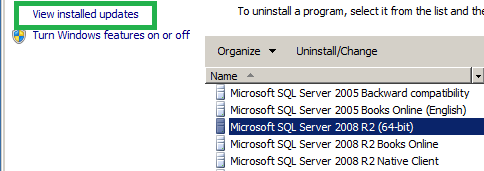
Go to "Programs and Features" options in Control Panel and click on "view installed updates"

Highlight the Service Pack you want to uninstall and click "Uninstall"

The uninstall Service Pack for SQL Server wizard will now come up and click "Next" here once the update rules have been verified.

Select the features for which you need to remove service pack and click "Next"

Once the file check is completed, Click "Next"

Verify the Summary and click "Remove"

Wait for the process to complete

Once this is completed, Restart the computer to finish the SQL Server Setup.

Now verify the changes


Wednesday, October 17, 2012

A failure was detected for a previous installation, patch, or repair during configuration for features...

You receive the following error when you try to apply an update or service pack for a SQL Server Instance.

TITLE: SQL Server Setup failure.
------------------------------
SQL Server Setup has encountered the following error:

A failure was detected for a previous installation, patch, or repair during configuration for features [SQL_Engine_Core_Shared,SQL_PowerShell_Engine_CNS,CommonFiles,CommonFiles_Loc,]. In order to apply this patch package (KB2528583), you must resolve any issues with the previous operation that failed. View the summary.txt log to determine why the previous operation failed.

Error code 0x84B20001.
------------------------------
BUTTONS:
OK
------------------------------

This happens when you try to install an update or service pack or do an edition upgrade and if that action does not complete successfully.
In my case, I recently tried to do an upgrade of SQL Server 2008 R2 Evaluation version to SQL Server 2012 Evaluation edition and since this upgrade path was not supported, the installation gave an exception which forced me to quit the installer.
After this I tried to install SP1 for SQL Server 2008 R2 and I got this error.

To Fix this issue, you have to "Repair" the existing SQL Server Instance. This option is available in "Add Or Remove Programs" feature of Control Panel.


Once the Repair is completed, you can restart the installation of Service Pack.

Ads